6 min. reading

Yulii Cherevko
CEO paintit.ai
Published:
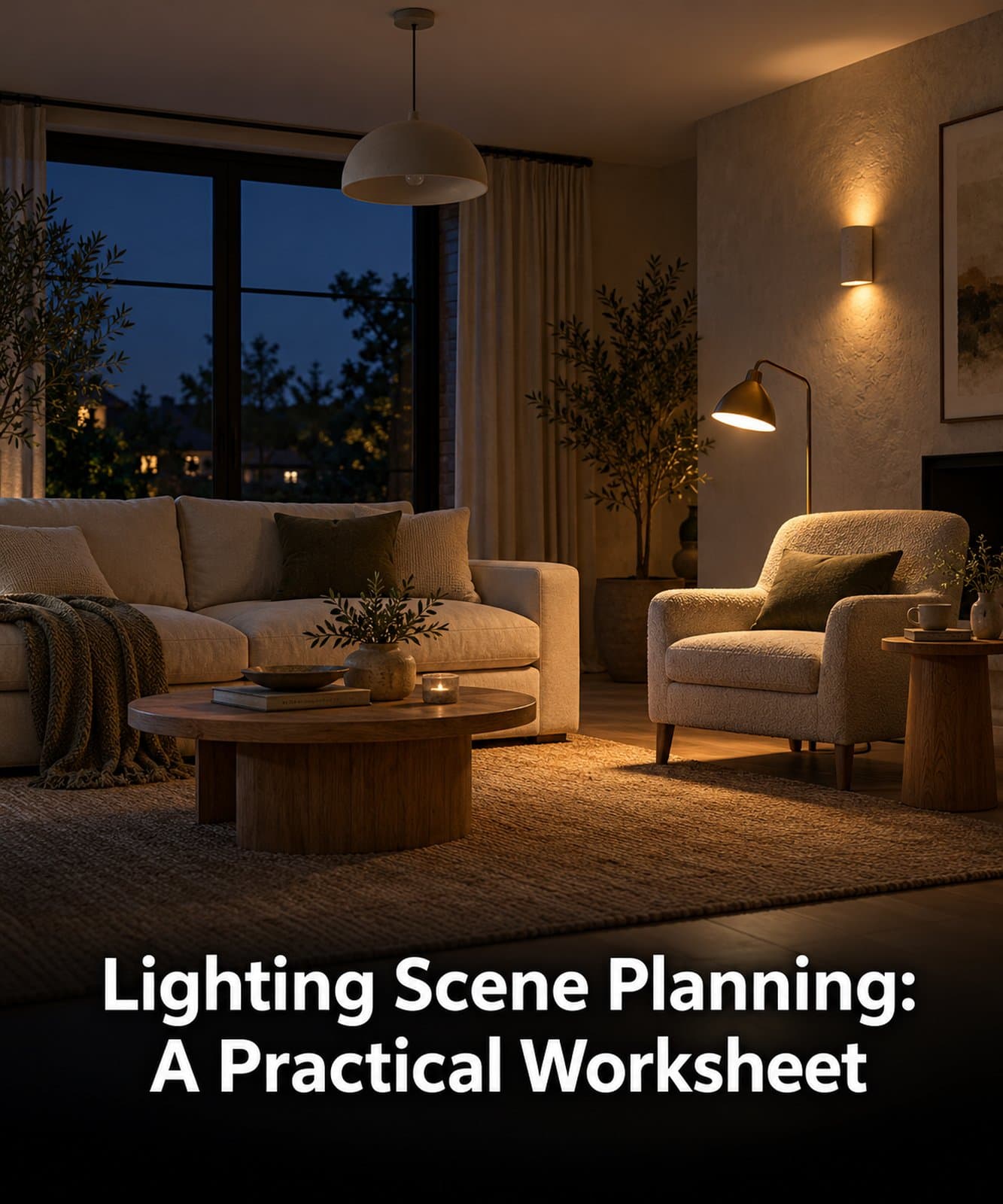
When comparing living room lighting scenes, give every light source two separate instructions: what happens to the fixture, and what it does in the scene. A ceiling pendant can remain installed while switched off. Removing it from the room is a different design change. Use the worksheet below to compare your options while keeping the room and viewing conditions fixed.
This practical worksheet draws on an AI-assisted qualitative review of four selected English-language Paintit requests from August and early September 2026. They included physical fixture replacement, a night view with separately named sources, and numerical light requirements alongside a paint change. These examples illustrate decisions; they do not measure how common the requests are. The scenarios below are editorial reconstructions, not customer quotations or tested lighting results.
A fixture list describes the sources you intend to keep, add, replace or remove. A lighting scene describes which of those sources operate together for a particular activity or view. Lutron’s scene-programming guidance illustrates the established control concept: a scene can coordinate several lights and shades for an activity. The worksheet here describes visual intent; it does not program equipment.
For example, keep an existing ceiling pendant in both proposals. In one, show it switched off while a reading lamp is on. In another, show the pendant on. Its shape and position can stay identical even though its operation changes. By contrast, a request to remove the pendant should leave no pendant in the fixture inventory, regardless of the depicted time of day.
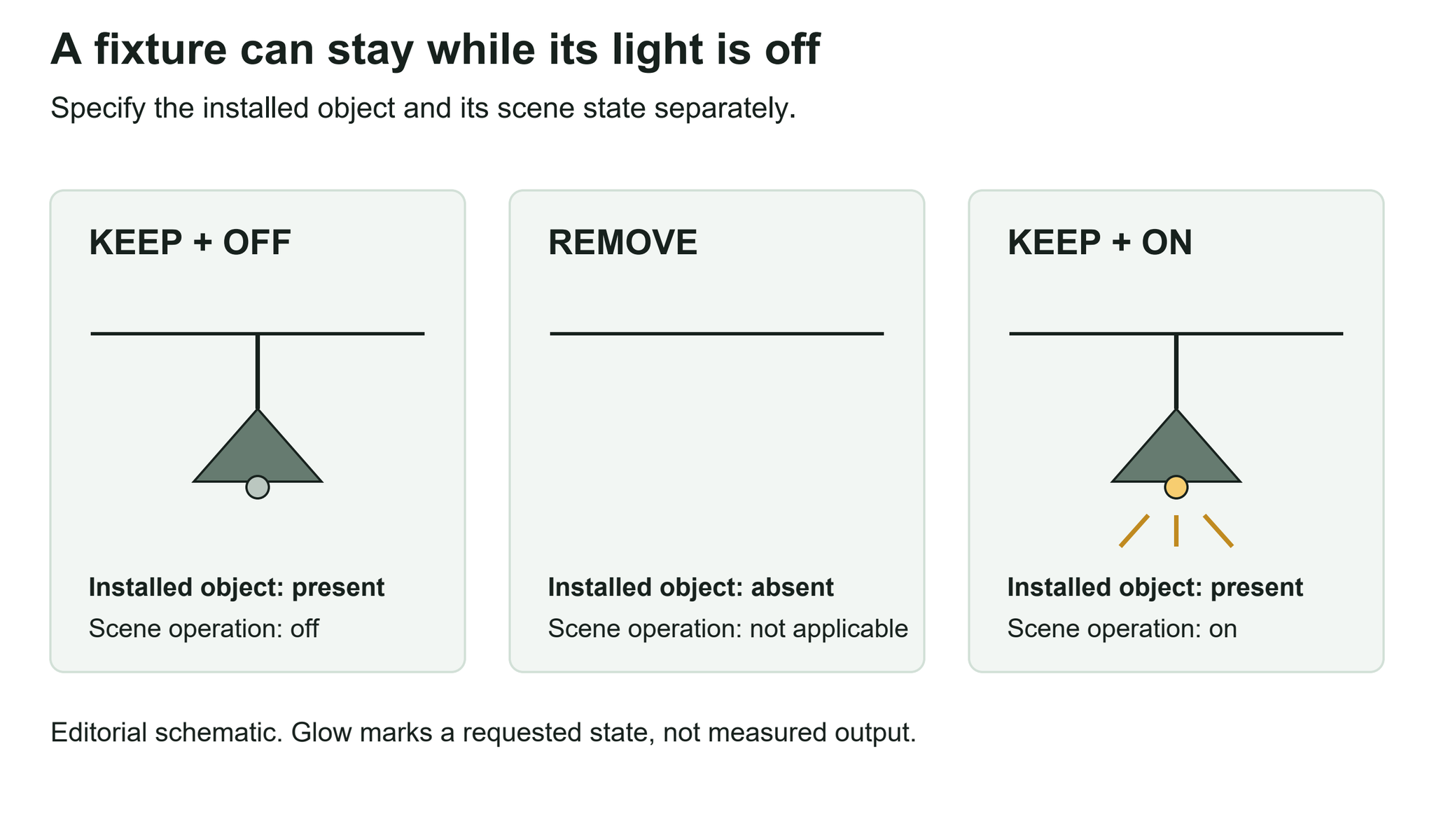
Use the same distinction for a reference image. Borrowing the appearance of one lamp does not automatically mean borrowing the reference room’s daylight, furniture or other light sources. Specify the object you want to replace, then describe the intended scene separately.
Choose a concrete question before filling the sheet. The example asks: should this room’s evening concept emphasize the reading chair or the textured wall? It keeps the same fixtures, furniture, finishes, camera view and after-dark condition. Only the named sources’ operation changes.
Worked example — illustrative intent only. “On” means that the requested concept shows the source operating; it says nothing about its real output, wiring or suitability for the activity. Both scenes use no daylight. The pendant remains visible in both.
| Source | Fixture decision | Scene A: reading focus | Scene B: wall focus |
|---|---|---|---|
| Ceiling pendant | Keep installed and visible | Off | Off |
| Lamp beside the chair | Keep its position and form | On | Off |
| Light aimed at the wall | Keep its position and form | Off | On |
| Your source: ___ | Keep / add / replace / remove: ___ | Intended state: ___ | Intended state: ___ |
| Your source: ___ | Position or target: ___ | Intended state: ___ | Intended state: ___ |
These two scenes change two source states, so they compare complete lighting directions. To inspect the contribution of the wall light alone, leave the reading lamp on in both and toggle only the wall light. Name the decision you want to see before deciding how many variables to change.
Below the source rows, write a fixed-condition line: same room, same view, same finishes, same daylight condition. Add a separate list of unresolved checks, such as whether the existing lamp can be controlled independently. “Unknown” is more useful than assuming a dimmer or a separate circuit exists.
Copy this blank comparison brief. Fill one source line for every fixture, then use the same brief to review both images. The on/off fields describe the intended picture; confirm real controls separately.
Room and decision: ___
Scene A purpose: ___
Scene B purpose: ___
Source name/location: ___
Fixture decision (keep/add/replace/remove): ___
Scene A state: ___ | Scene B state: ___
Repeat the source line for every fixture.
Fixed view, daylight, furniture and finishes: ___
Change tested between A and B: ___
Observed mismatch against a source row: ___
Controls or product details still to verify: ___
Keep the source, change its state. You like a pendant’s shape but want an evening view without its glow. Keep the pendant in the fixture column and mark it off in that scene. Review both the object and the apparent light: an image that removes it has answered a fixture question you did not ask.
Replace the source, keep the comparison conditions. You want to compare a compact pendant with a larger one. Change only that inventory row, keep the scene condition explicit, and retain the surrounding room. Do not silently add a wall light to one option; that would introduce another lighting source as well as another object.
Change the light, postpone the finish edit. You want warmer-looking light and a different wall color. Make a lighting comparison with the existing finish first, then request the finish change as a separate version. If you change both together, the image alone cannot tell you how much of the apparent difference comes from either choice. This is a comparison method, not a finding about Paintit’s accuracy.
Compare each concept against the sheet. Is the retained pendant still present? Is the source marked off depicted without a glow? Did an unrequested lamp, window or cabinet light appear? Did the wall finish change? Record a mismatch against its source row rather than asking for a vaguely “better” image.
Paintit’s room photo previews for lighting concepts provide a visual workspace for discussing those choices. Use the room photograph as the spatial basis and state any reference’s particular role. Check the resulting image against your brief; source placement and retained features are not guaranteed.
A convincing concept cannot verify lumens, illuminance on a work surface, glare, color temperature or independent control. A numerical requirement belongs in a separate specification/check column, supported by product information and the appropriate professional review. Vision Graphics’ night-rendering requirements similarly distinguish a lighting brief with fixture data from an estimated visual treatment. A generated glow is not a measurement.
For a wider discussion of lighting layers, exterior zones and checks before choosing a product, see our guide to visual lighting comparisons. This worksheet handles the narrower source-by-source decision that sits between an initial idea and that review.
Hand over the selected concept with its source rows, fixed conditions and open checks. That package makes clear whether you approved a fixture’s appearance, its proposed location or a particular combination of lights. Keep those approvals distinct before turning the concept into a shopping list or an installation brief.


