
9 min. reading
How Interior Designers Can Use Paintit.ai for Faster Client Concepts

Yulii Cherevko
CEO paintit.ai

Page Contents:
- 1. Why Paintit.ai Is Useful for Designers
- 2. Where It Fits in the Design Process
- 3. How to Build Better Client Directions
- 4. How to Present Options Without Confusing the Client
- 5. A Designer Prompt Framework
- 6. Designer Prompt Cards
- 7. Revision Control and Iteration
- 8. Advanced Workflow Tips for Designers
- 9. Frequently Asked Questions
- 10. Related articles
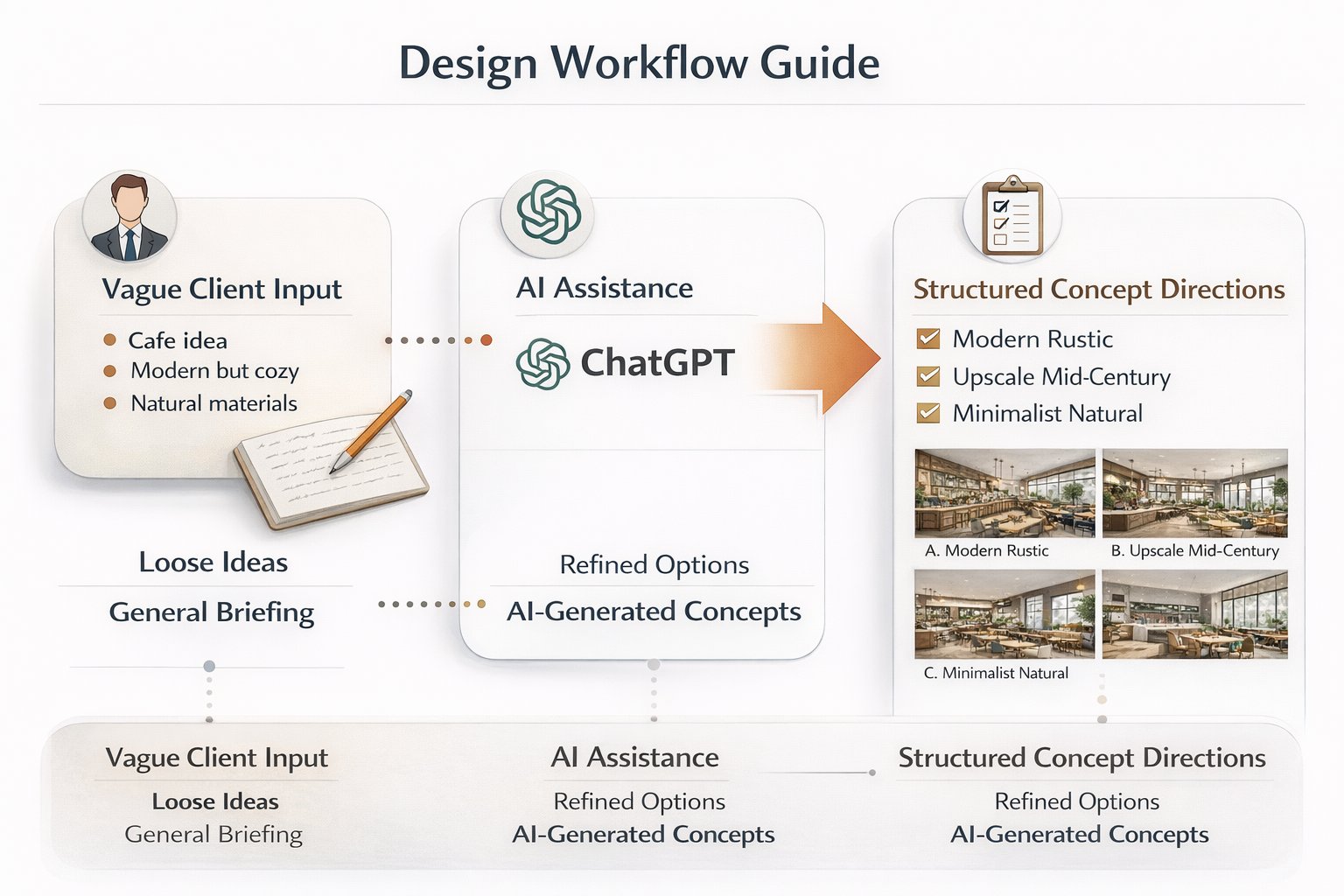
Paintit.ai is especially useful for designers when it is treated as a concept acceleration tool, not as a replacement for professional judgment. This guide shows how to use Paintit.ai to generate faster first directions, structure cleaner client options, reduce revision chaos, and move from idea to presentation with more control.
Why Paintit.ai Is Useful for Designers
For designers, the value is speed of direction — not just speed of image generation.
The strongest professional use of Paintit.ai is early-stage concept exploration. Instead of spending too much time manually building first-round visuals for every possible direction, designers can use Paintit.ai to quickly test mood, furniture language, material families, and spatial tone.
What Paintit.ai helps designers do faster
Generate first-round options — explore multiple visual directions before committing deeper time.
Clarify client taste — use options to understand what the client reacts to emotionally and visually.
Shorten ambiguous briefing — turn vague words like cozy, elegant, premium, or modern into visible directions.
Reduce revision drift — compare cleaner concept branches instead of random disconnected changes.
Move faster toward presentation logic — convert raw ideas into a structured shortlist more efficiently.
Used well, Paintit.ai gives designers more speed in the fuzzy stage of the process — the stage where time is often lost.
Where It Fits in the Design Process
Paintit.ai works best before full specification, not after everything is already decided.
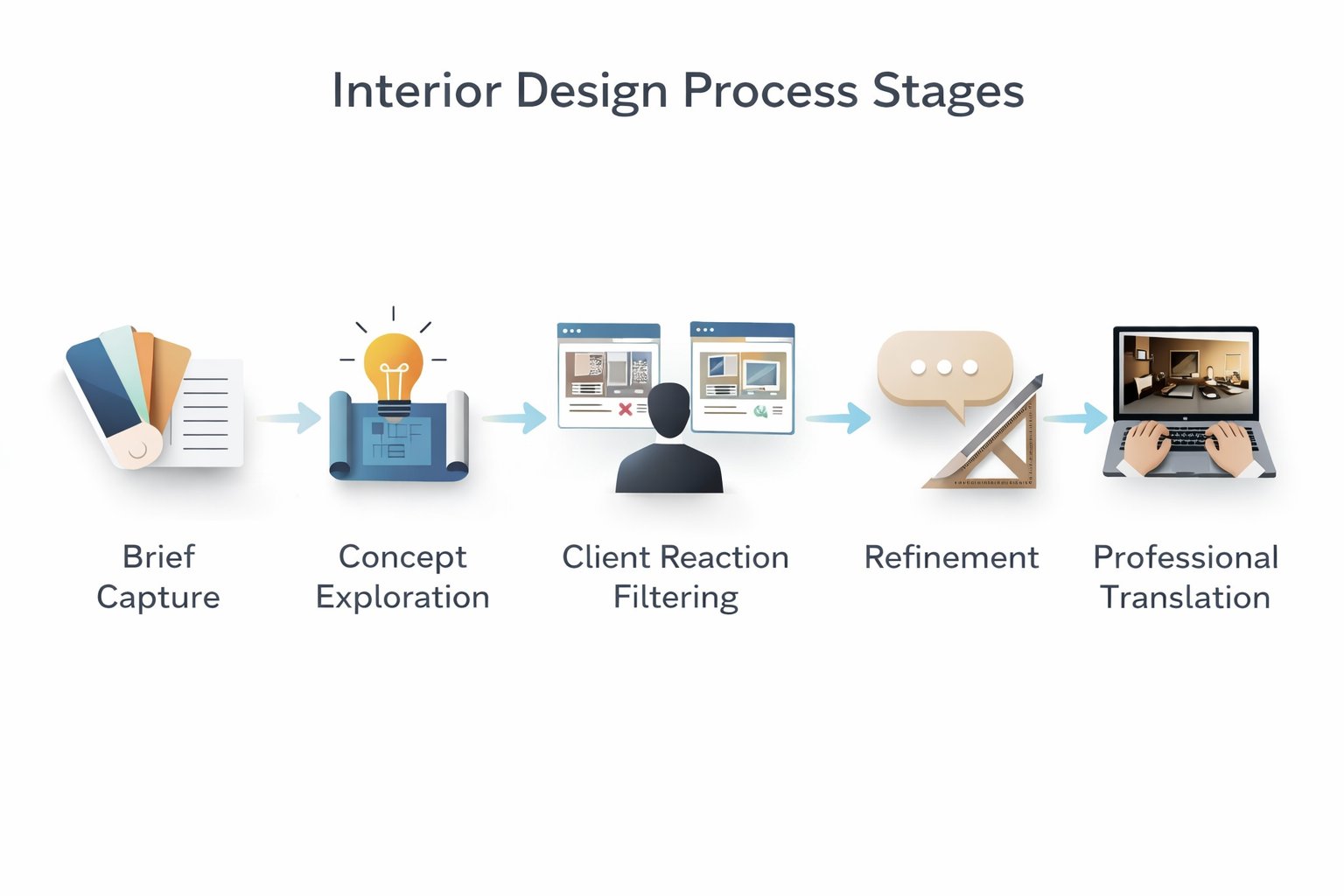
Designers usually get the most value when Paintit.ai is used between the brief and the polished design package. It is ideal for turning raw input into visual hypotheses, then narrowing those hypotheses into stronger directions.
A practical designer workflow
Stage 1 — brief capture — client goals, room type, style preferences, constraints, budget tone, emotional cues.
Stage 2 — concept exploration — use Paintit.ai to generate 2 to 4 strategically different directions.
Stage 3 — client reaction filtering — identify what the client actually responds to: palette, softness, density, materials, mood.
Stage 4 — refinement — take the winning direction and develop it into a stronger concept path.
Stage 5 — professional translation — convert the selected direction into a more detailed designer-controlled solution.
The important point is this: Paintit.ai is strongest when used to reduce uncertainty early, not to replace final design discipline.
How to Build Better Client Directions
The goal is not to show many images. The goal is to show a few clear strategic options.
One of the biggest mistakes in client concept work is giving the client too many weak variations. A stronger method is to create a small number of clearly differentiated directions with purpose.
A useful structure for client options
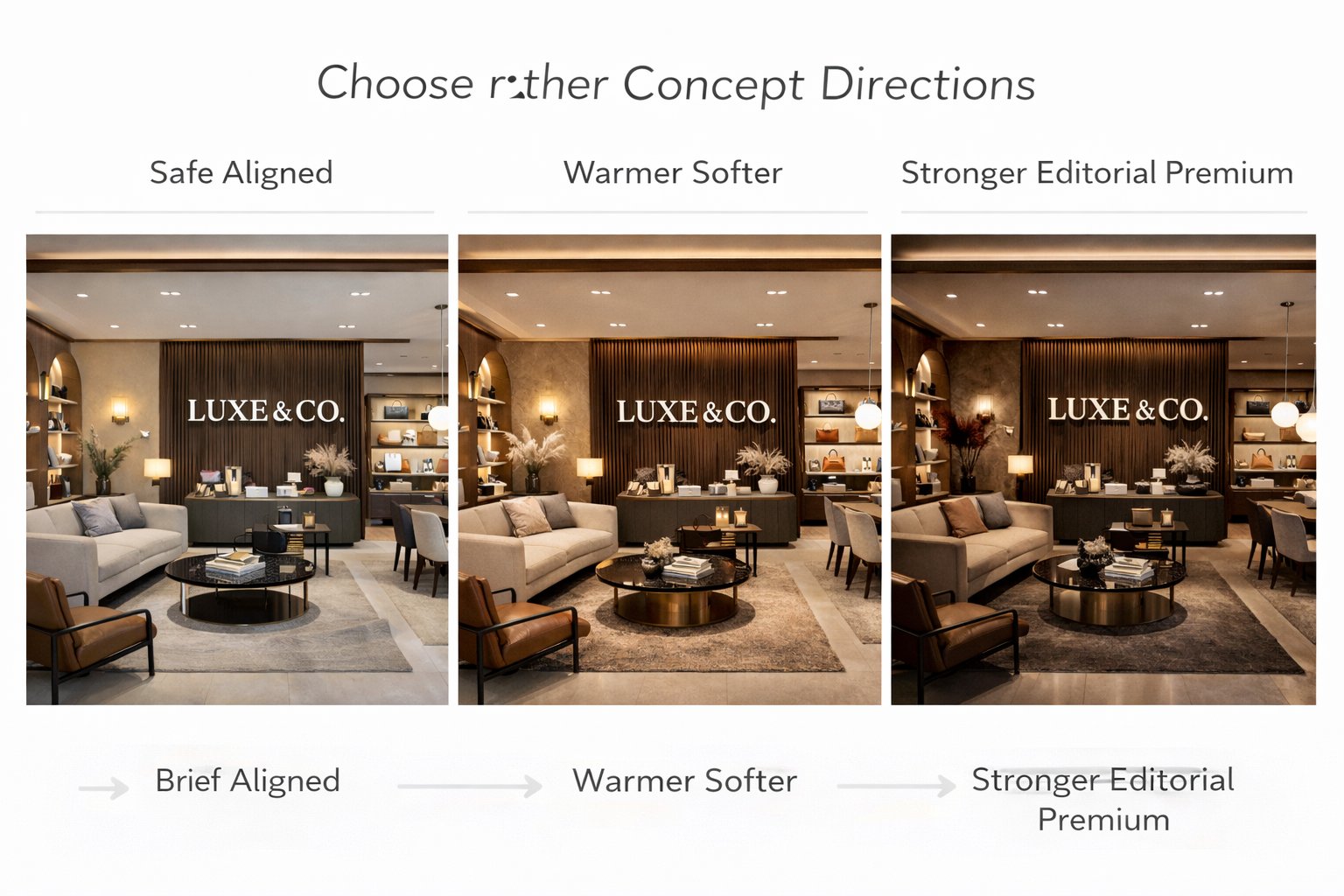
Option A — safe and aligned — easy to approve, commercially balanced, close to stated preferences.
Option B — warmer or softer — more emotional, more lifestyle-driven, more comfort-led.
Option C — stronger signature direction — more premium, more editorial, more distinctive.
Optional D — function-led alternative — same mood family, but a different use-case or layout emphasis.
This approach makes client feedback much clearer. Instead of saying “I do not know,” clients often respond more specifically: “I like the warmth of B, but the clarity of A,” which is much more actionable.
Technical tip
Make each option different by concept, not just by decoration. Different pillows do not create a true direction change. Different material language, mood, density, and hierarchy do.
How to Present Options Without Confusing the Client
Presentation quality depends on editing, not just generation.
Clients do not always know how to interpret rough concept material. The designer’s role is to frame the options so the client understands what is changing and what is not.
A cleaner client-presentation method
Give each direction a name — for example Calm Scandinavian, Warm Organic Modern, Refined Boutique Minimal.
State the core idea in one line — what this direction is trying to achieve emotionally and spatially.
State what changes most — materials, softness, furniture language, mood, density, or premium feel.
Limit the set — three strong options usually work better than seven inconsistent ones.
The more structured the comparison is, the more useful the client’s feedback becomes. Paintit.ai helps with speed, but editing the narrative is what turns fast generations into professional concept communication.
A Designer Prompt Framework
Designer prompts are usually better when they combine client psychology, spatial logic, and design language.
A strong designer prompt should not only describe style. It should translate the brief into a clear design hypothesis.
A practical designer prompt structure
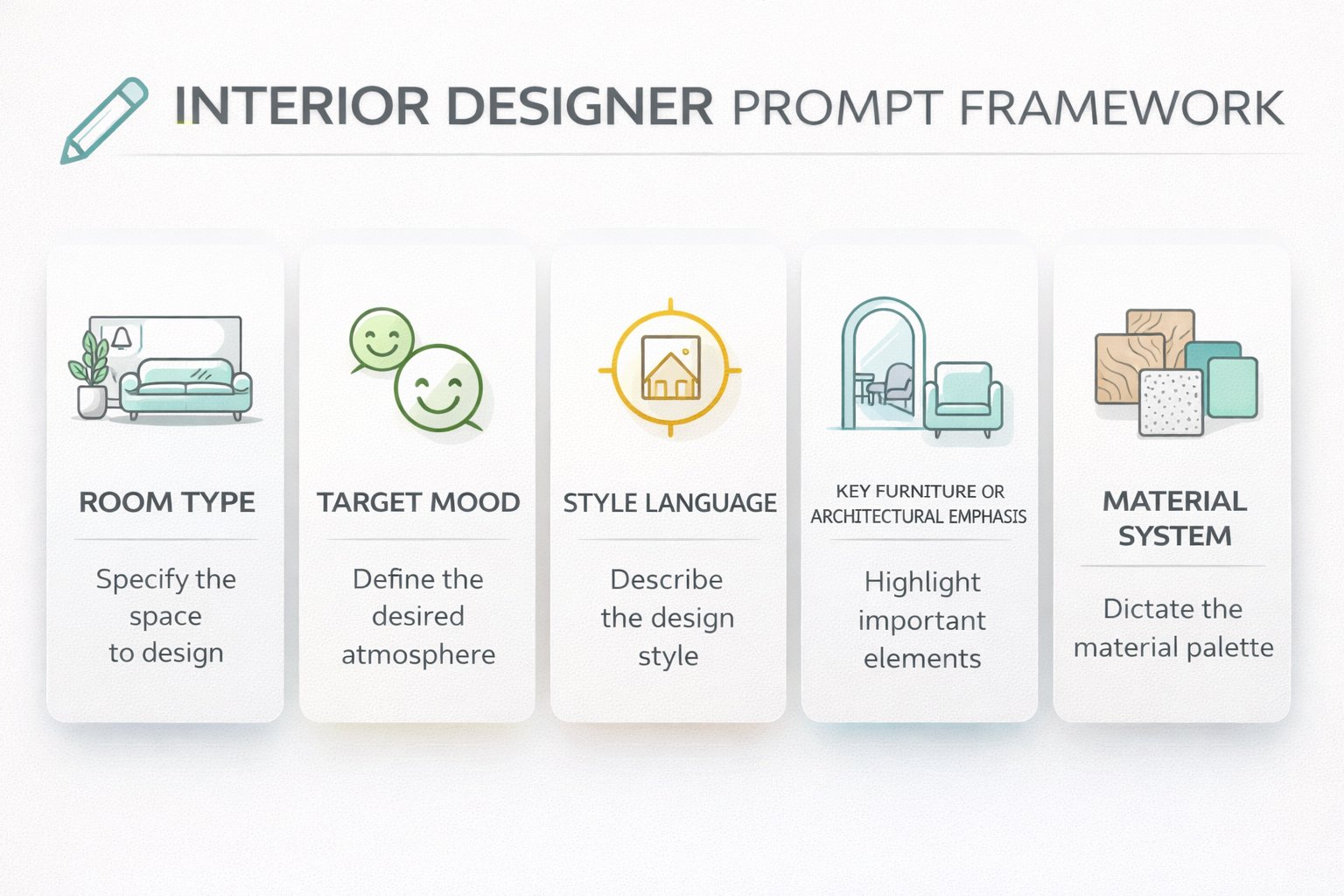
[Room or project type] + [Target mood] + [Style language] + [Key furniture or architectural emphasis] + [Material system] + [Constraint]
What to define more clearly
Target mood — calm, elevated, family-friendly, editorial, soft luxury, understated premium, inviting.
Style language — not just “modern,” but a more precise visual framework.
Spatial emphasis — focal wall, bed anchor, sofa composition, vanity wall, island, facade entry, or zoning logic.
Material system — what surfaces and finishes define the concept family.
Constraint — preserve layout, openings, proportions, or other structural facts when realism matters.
Example of a designer-grade concept prompt:
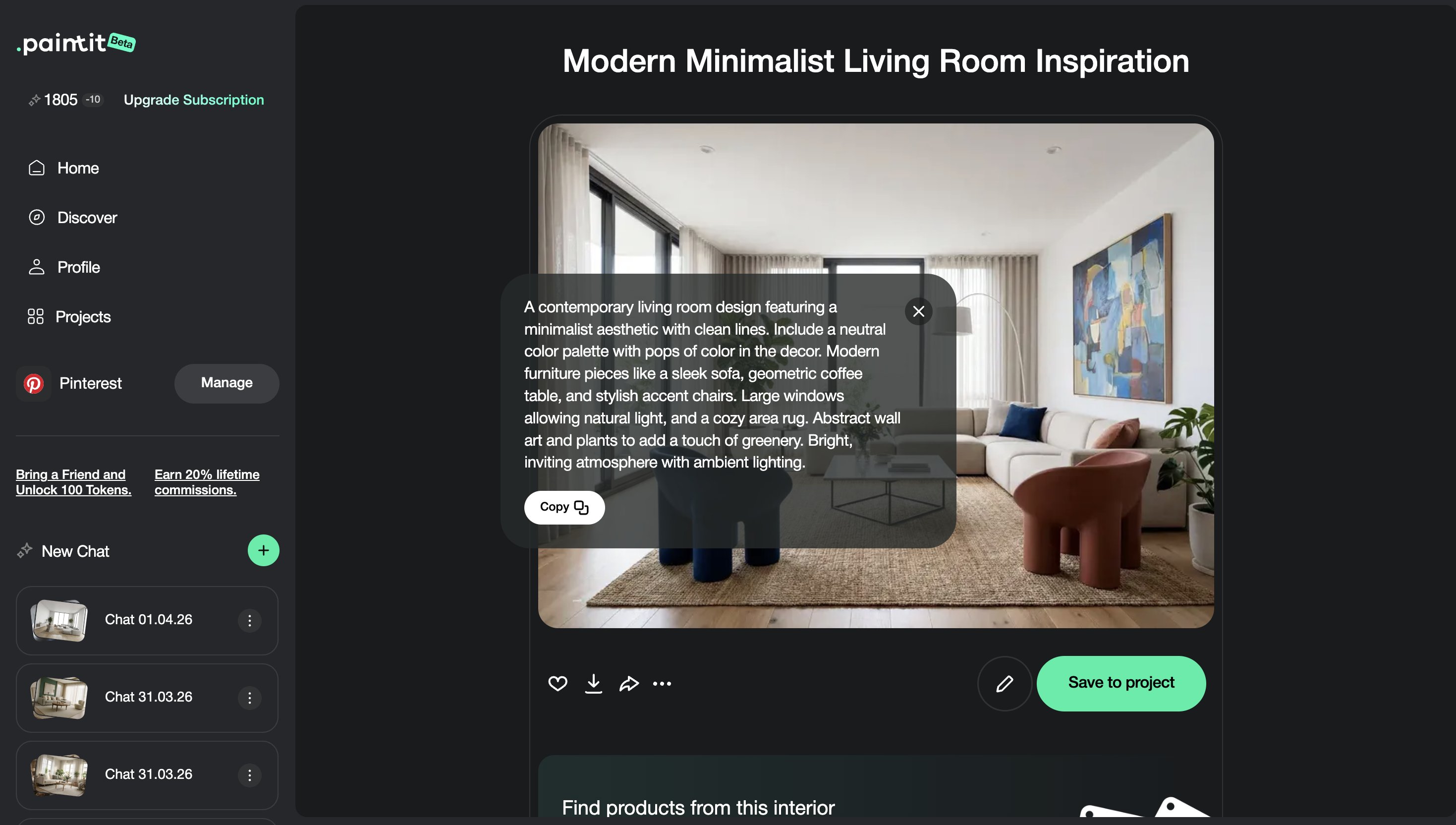
Transform this living room into a warm organic modern concept for a premium family client, with a large neutral sofa composition, curved accent seating, textured stone and plaster surfaces, soft oak details, and a calm editorial atmosphere. Keep the room layout and window positions unchanged.
This works better because it does not only describe style. It encodes the intended client feeling and spatial hierarchy.
Designer Prompt Cards
Use these as copy-ready starting points for common client concept situations.
Residential concept cards
Warm family living room direction
Redesign this living room as a warm family-focused concept with a comfortable deep sofa, soft natural materials, clean circulation, a calm welcoming atmosphere, and a premium but approachable finish language. Keep the room layout unchanged.
Calm bedroom direction
Transform this bedroom into a calm refined concept with a strong bed-wall anchor, layered neutral textiles, warm wood details, soft light, and an understated luxury mood. Preserve the architecture and proportions.
Bathroom spa direction
Redesign this bathroom as a soft spa-like concept with a floating vanity, quiet stone surfaces, restrained fixtures, diffused lighting, and a premium calm atmosphere. Keep the wet-zone layout unchanged.
Commercial and presentation cards
Hospitality-led commercial concept
Redesign this commercial interior as a warm hospitality-driven space with clear zoning, soft premium materials, balanced seating density, and a welcoming branded atmosphere. Keep the circulation path and main room structure unchanged.
Client option B — stronger editorial direction
Create a more distinctive premium concept for this space with stronger contrast, cleaner architectural emphasis, more sculptural furniture language, and a refined editorial mood, while keeping the layout and room proportions unchanged.
Best practice: designer prompts should describe what the concept is trying to solve, not only what style it should imitate.
Revision Control and Iteration
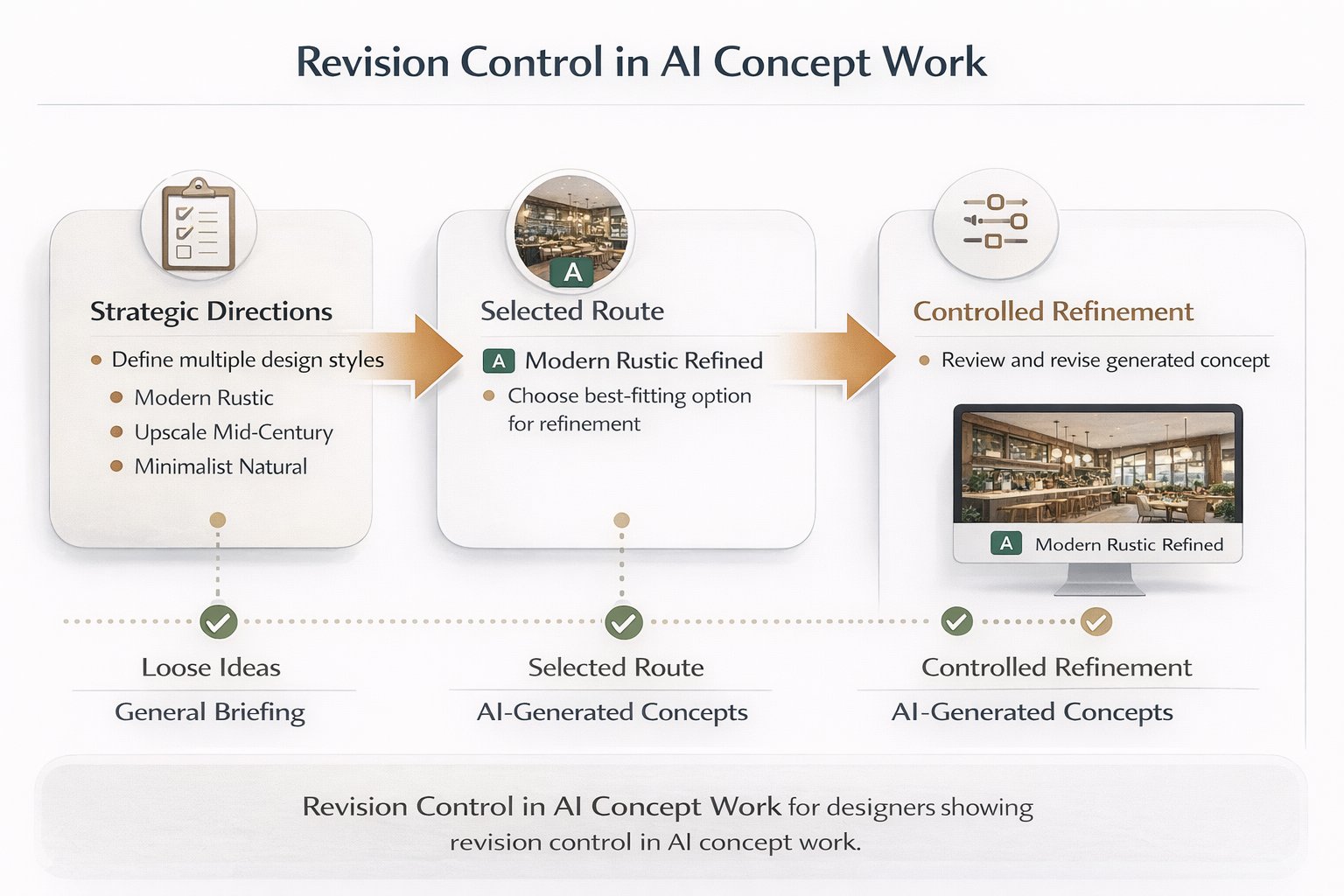
Most client chaos comes from losing the logic of what changed between versions.
Once a client starts reacting to images, the process can quickly become noisy. The best way to stay in control is to isolate variables instead of changing everything at once.
A cleaner revision method
Round 1 — compare strategic directions.
Round 2 — refine the selected direction through one or two controlled changes only.
Round 3 — improve realism, detailing, and presentation readiness.
Rule — change one main variable per revision round whenever possible.
This makes client feedback easier to interpret. It also keeps Paintit.ai outputs more useful as part of a designer-managed process.
Advanced Workflow Tips for Designers
These small operational choices often make the tool much more valuable in professional hands.
Tip 1 — Build client language into the prompt
Translate vague client words into more exact design language, but keep their emotional intent visible.
Tip 2 — Separate taste from feasibility
Use early concept rounds for taste alignment. Use later rounds for realism and refinement.
Tip 3 — Use Paintit.ai to expose preference patterns
Clients often reveal deeper preferences only after seeing contrasts. Use that to sharpen the brief.
Tip 4 — Avoid overpromising the first round
Present concept options as directional, then develop the chosen route more deeply.
Tip 5 — Keep your authorship visible
The strongest professional workflow is not “AI made this.” It is “AI helped accelerate the concept phase under designer control.”
That mindset usually leads to better client trust and better internal decision quality.
Frequently Asked Questions
What is the best professional use of Paintit.ai for designers?
Usually early concept exploration, client taste clarification, and faster first-round visual direction building.
Should I show clients everything the AI generates?
No. Curate the strongest directions. Professional value comes from selection and framing, not from volume.
How many options should I show a client?
Usually two to four strategically different directions are enough before refining the selected route.
What is the biggest designer mistake with AI concepts?
Treating fast images as final design instead of using them as structured concept tools inside a designer-led workflow.
How do I reduce revision chaos?
Keep rounds controlled, isolate variables, and compare clearly different concepts before refining details.
Can Paintit.ai replace a professional designer process?
It is much stronger as a concept accelerator inside a designer process than as a replacement for full design development.
Create Client-Ready Concepts
Use Paintit.ai to move from vague client input to clearer concept options faster, while keeping the design process structured, curated, and professionally controlled.
Related articles
Trending
Best Qbiq Alternatives for Layout Optimization & High-End Visualization
How Real Estate Agents and Stagers Can Use Paintit.ai
How Interior Designers Can Use Paintit.ai for Faster Client Concepts
How to Visualize Commercial Spaces with Paintit.ai
How to Redesign a Home Exterior with Paintit.ai
Related articles
7 min read
How to Create Organic Minimalism with Curved Furniture and Soft Shapes
Learn how to create organic minimalism with curved furniture, soft shapes, and natural textures. Explore palettes, materials, and visualize it with Paintit.ai.
Yulii Cherevko
CEO paintit.ai
9 min read
Best Qbiq Alternatives for Layout Optimization & High-End Visualization
Compare the best Qbiq alternatives for AI space planning and interior visualization in 2026. Find the right tool for architects, designers, and agents.
Yulii Cherevko
CEO paintit.ai
9 min read
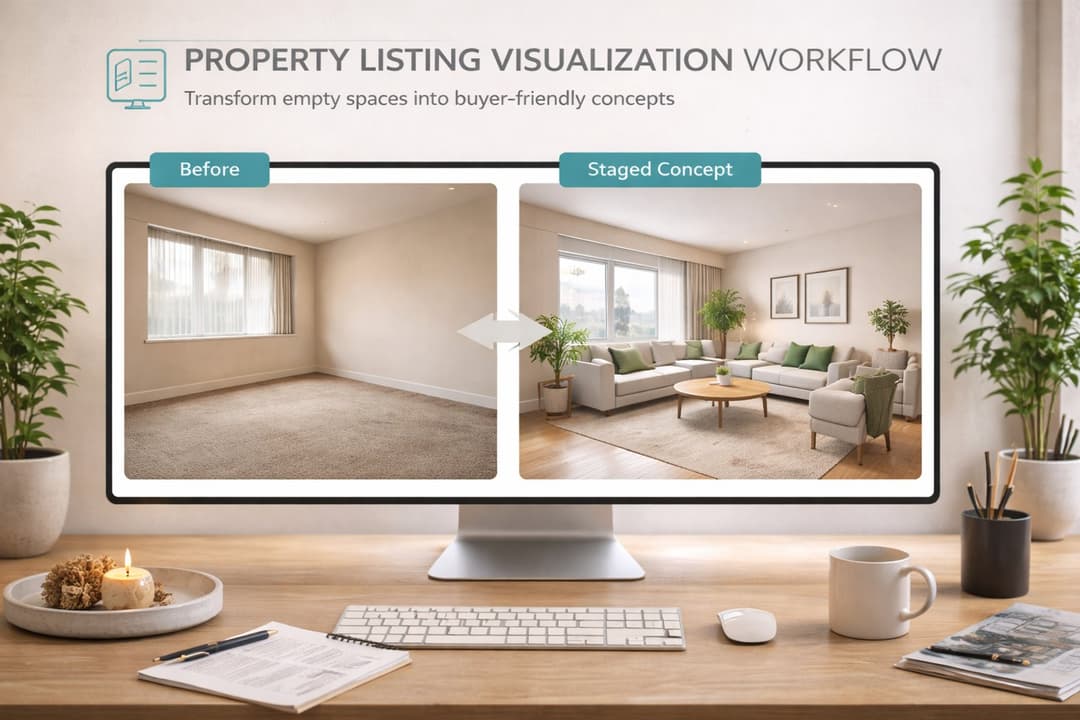
How Real Estate Agents and Stagers Can Use Paintit.ai
Learn how real estate agents and stagers can use Paintit.ai to stage empty rooms, refresh dated listings, clarify room purpose, and create more believable buyer-friendly visuals faster
Yulii Cherevko
CEO paintit.ai

9 min read
How Interior Designers Can Use Paintit.ai for Faster Client Concepts
Learn how interior designers can use Paintit.ai to build faster concept directions, compare options, improve client communication, and structure revisions without losing design control
Yulii Cherevko
CEO paintit.ai

9 min read
How to Visualize Commercial Spaces with Paintit.ai
Learn how to visualize commercial spaces with Paintit.ai using better zoning logic, stronger brand alignment, realistic seating and circulation, and more believable retail, office, cafe, and hospitality concepts
Yulii Cherevko
CEO paintit.ai
9 min read
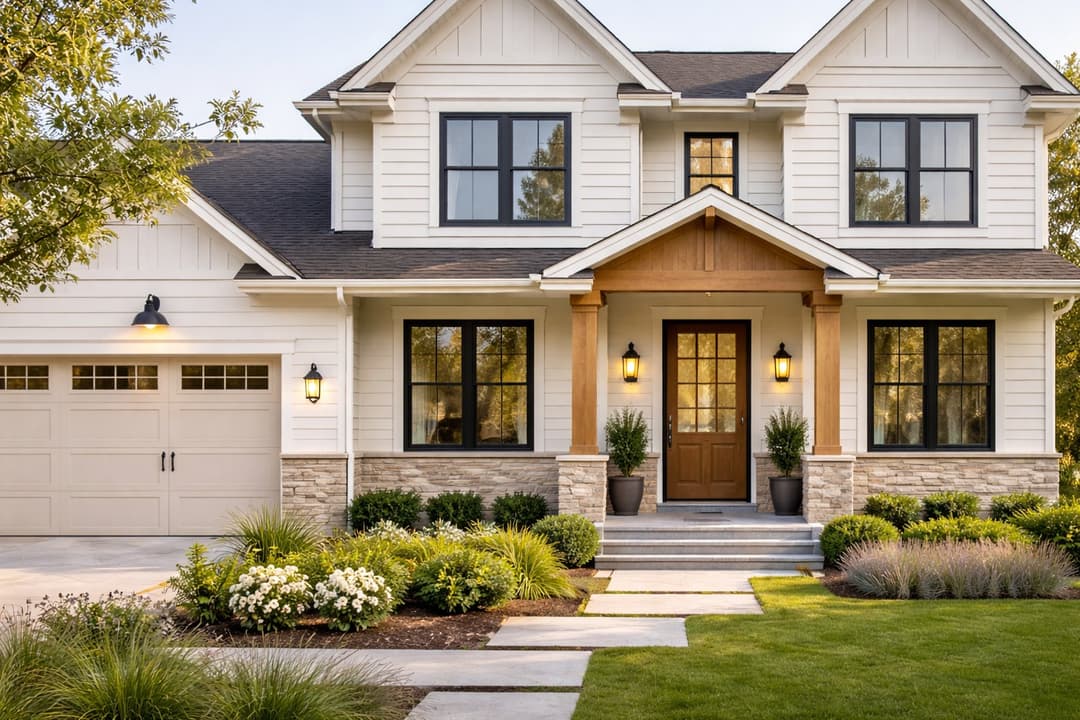
How to Redesign a Home Exterior with Paintit.ai
Learn how to redesign a home exterior with Paintit.ai using better facade logic, cleaner material systems, realistic curb-appeal upgrades, stronger prompt control, and more believable exterior concepts
Yulii Cherevko
CEO paintit.ai