
8 min. reading
How to Use Full Redesign in Paintit.ai

Yulii Cherevko
CEO paintit.ai
Page Contents:
- 1. What Full Redesign Is
- 2. When to Use Full Redesign
- 3. Best Inputs for Full Redesign
- 4. How to Keep Control While Changing the Look
- 5. Step-by-Step Full Redesign Workflow
- 6. Full Redesign Prompt Cards
- 7. How to Iterate and Compare Results
- 8. Frequently Asked Questions
Full Redesign is the best Paintit.ai workflow when you want a clear new design direction for a room, facade, or commercial space. This guide shows when to use it, how to keep the result controlled, and how to get stronger visual concepts faster.
What Full Redesign Is
Use Full Redesign when you want a new visual direction for the whole space, not just one small edit.
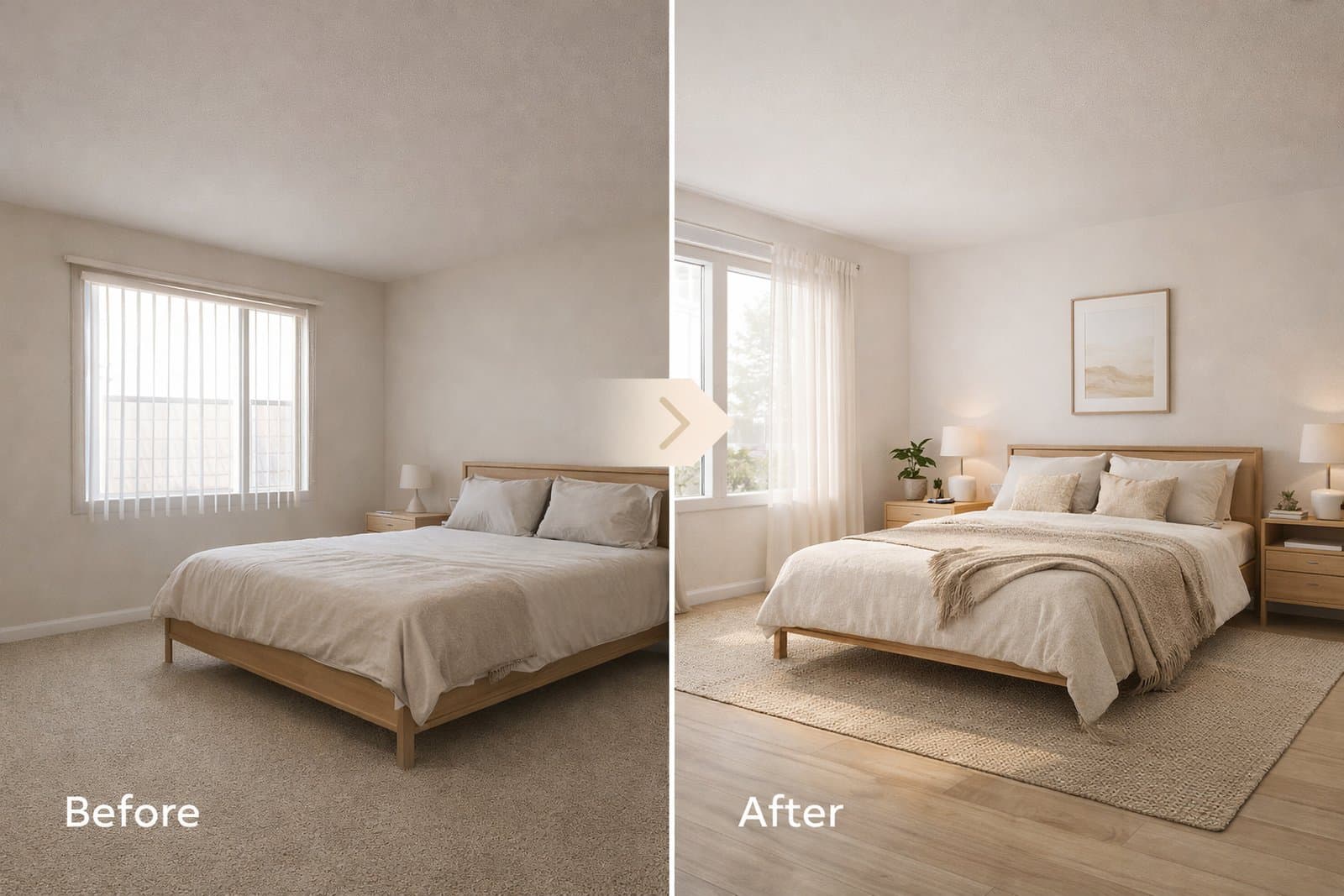
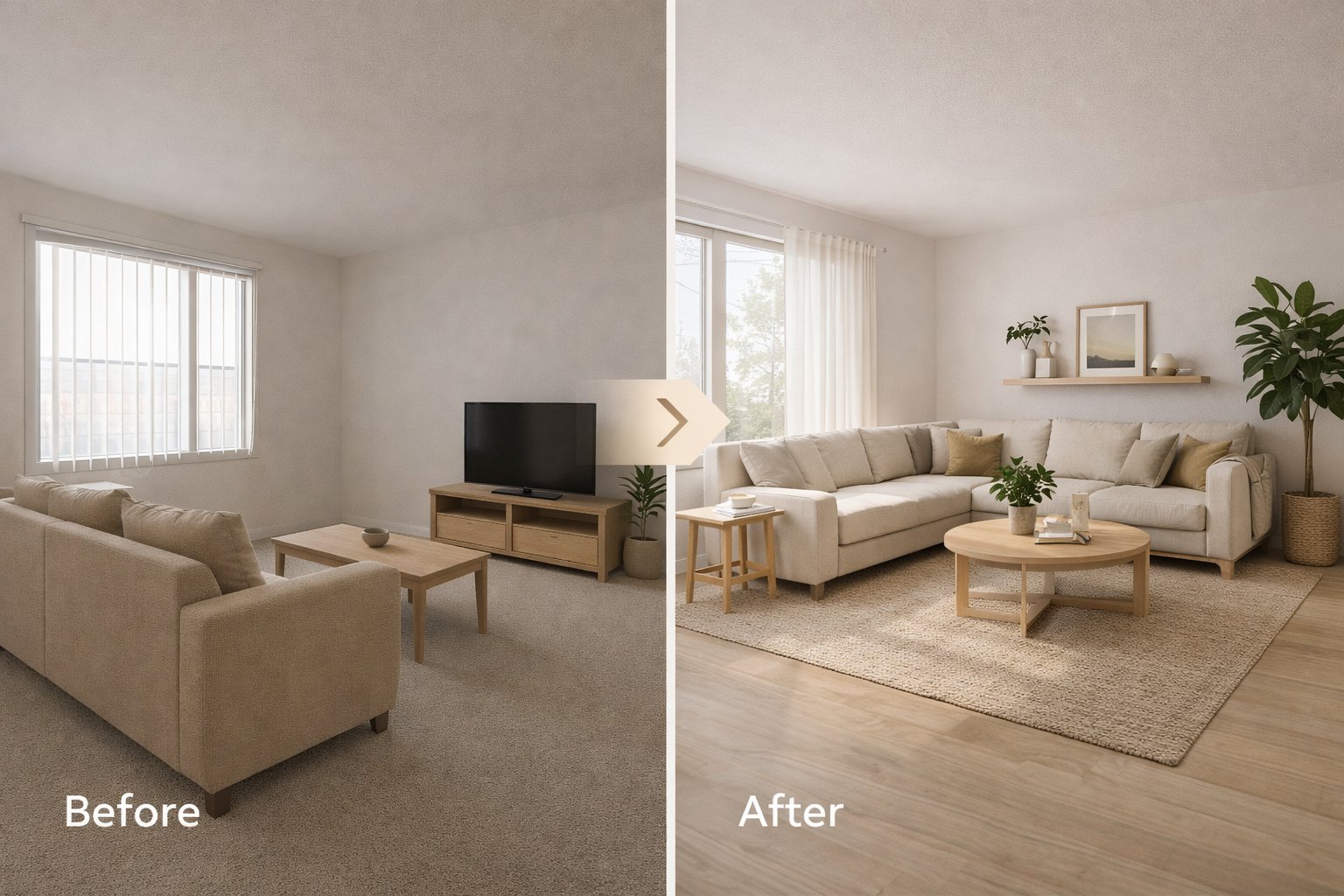
Full Redesign is the right Paintit.ai workflow when you want to transform the overall look and feel of a room, exterior, or commercial space. Instead of changing only wall color, one material, or a small detail, this mode is designed for a broader concept shift.
What Full Redesign usually changes
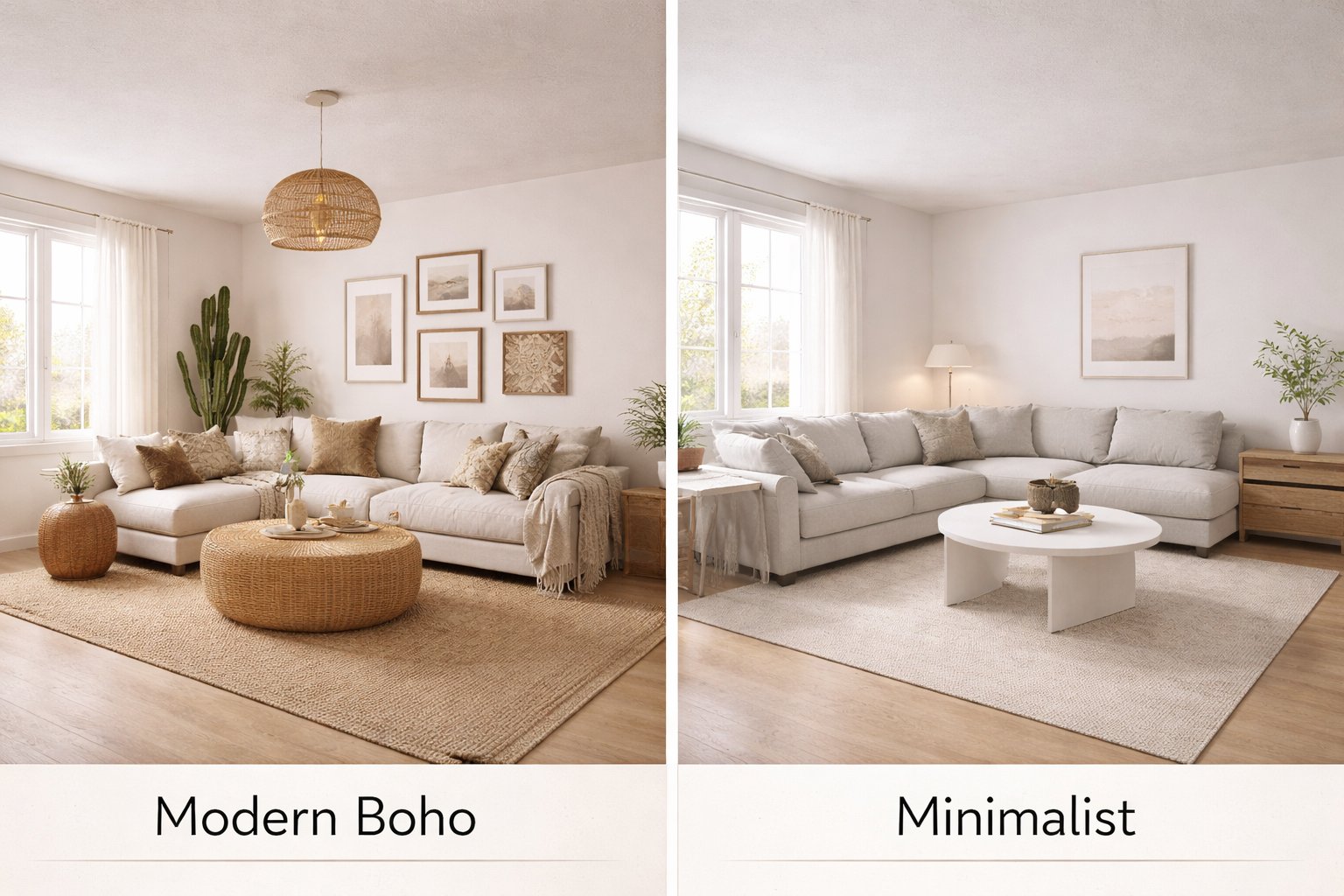
Style direction — for example, moving from generic to Scandinavian, Japandi, Organic Modern, or Contemporary Luxury.
Furniture language — sofas, tables, storage, decor, and overall composition can shift into a new concept.
Materials and surfaces — wood tones, wall finishes, textiles, and key visual textures can change.
Atmosphere — lighting feel, mood, and visual tone become more aligned with the new direction.
The goal is not a tiny correction. The goal is to generate a stronger overall concept that is easier to evaluate, present, refine, or save for later.
When to Use Full Redesign
Choose this workflow when you want a fresh concept, not just a minor variation.
Best use cases
Testing a new style direction — you want to see the room in a completely different visual language.
Early concept exploration — you need several strong directions before making decisions.
Client presentations — you want clearer concept options, not only material-level edits.
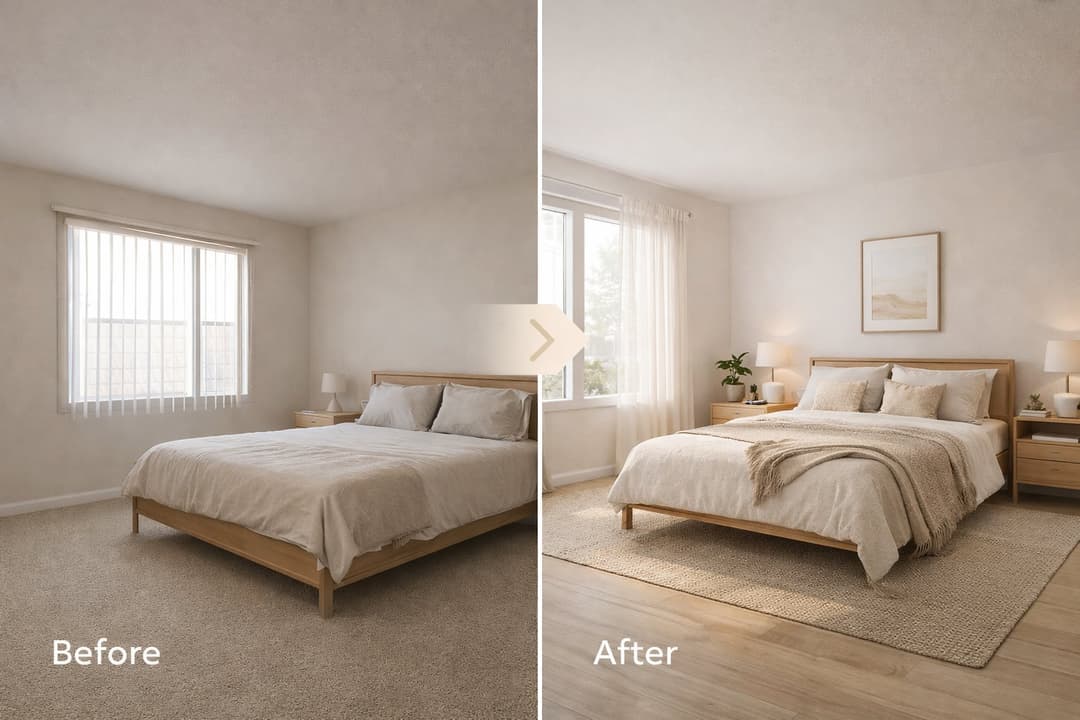
Real estate or staging previews — you need a stronger “before and after” transformation.
Exterior refreshes — you want to rethink the overall curb appeal, facade mood, and material palette.
If your goal is only to test a paint color, swap one finish, or keep almost everything unchanged, a narrower workflow such as Repaint or a controlled edit is usually better.
Best Inputs for Full Redesign
Full Redesign works best when the source image is clear enough for Paintit.ai to understand the whole space.
Because this workflow affects the full concept, the quality of the input matters even more. Paintit.ai needs enough visual information to understand the room, facade, or space as a whole.
Best input photo characteristics
Clear perspective — the room or facade should be easy to read.
Enough visible area — show enough of the space for the new concept to make sense.
Good lighting — avoid very dark, blurry, or overexposed source photos.
Minimal visual noise — avoid cluttered screenshots unless they are used as references.
For Full Redesign, it is usually better to start with one clean source image and one strong direction, rather than trying to solve multiple visual problems at once.
How to Keep Control While Changing the Look
Full Redesign does not mean losing control over the original space.
One of the most useful ways to work with Full Redesign in Paintit.ai is to change the visual identity while preserving the basic structure of the room or building.
What to keep fixed when needed
Layout — keep the room layout unchanged.
Windows and openings — keep window positions unchanged.
Architecture — preserve architecture and proportions.
Facade shape — keep the building shape and overall structure unchanged.
This is especially helpful when you want to explore a new style direction without turning the room into something unrecognizable.
Step-by-Step Full Redesign Workflow
The best results usually come from a simple, focused workflow.
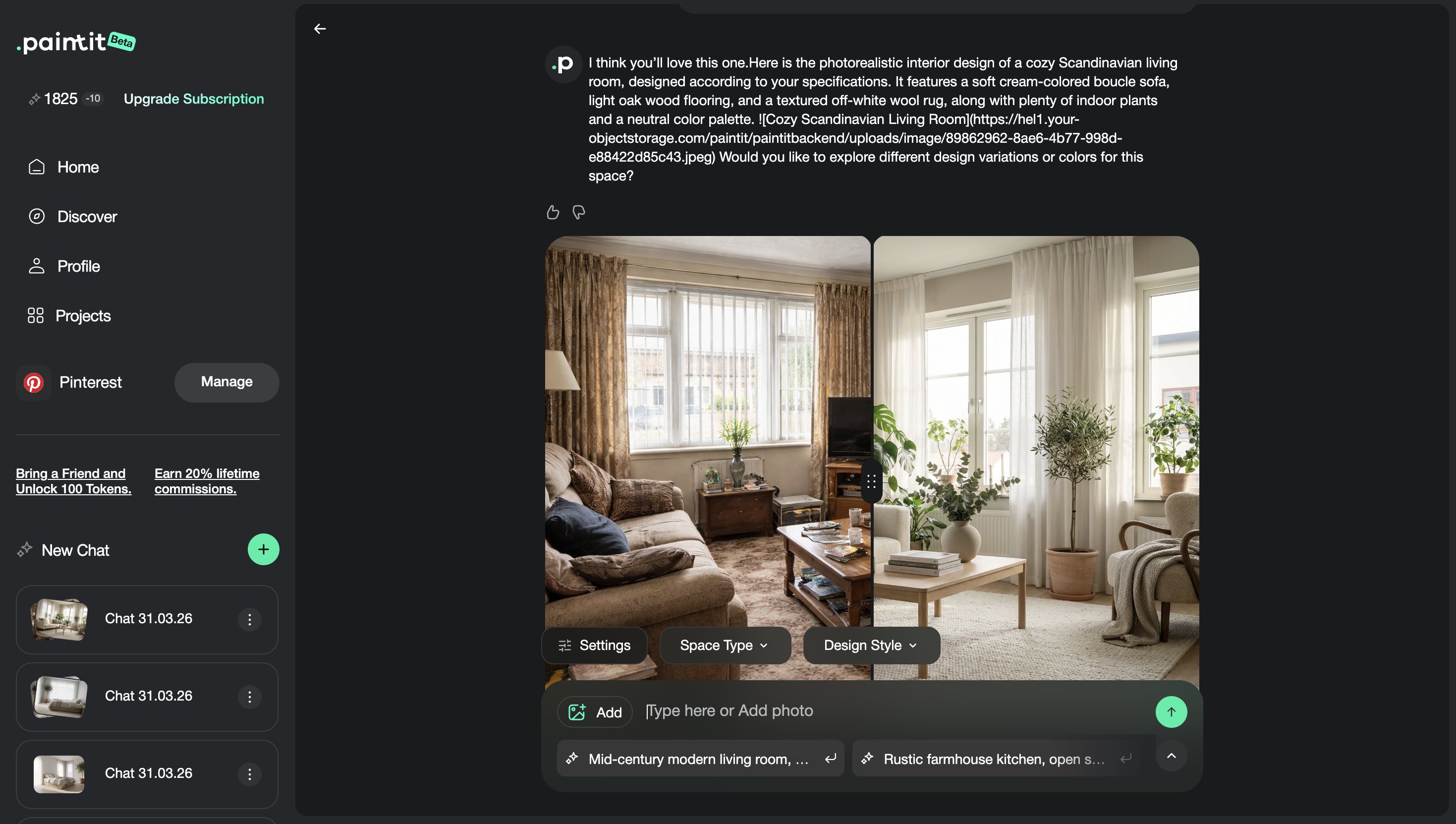
Step 1 — Upload a clear photo
Start with one room, facade, or space that is easy to read visually.
Step 2 — Choose one style direction
Do not mix several unrelated styles. Pick one clear direction first.
Step 3 — Describe the overall transformation
Tell Paintit.ai what kind of full concept shift you want.
Step 4 — Add two to four concrete visual cues
Use materials, colors, furniture character, and mood to make the direction more specific.
Step 5 — Add one constraint if needed
If you want control, say what should stay unchanged.
This workflow is simple, but it works because it makes the request more focused. Full Redesign performs best when the task is broad, but the direction is still clear.
Full Redesign Prompt Cards
Use these as copy-ready starting points for the most common Full Redesign scenarios.
Interior concept cards
Living room — Scandinavian
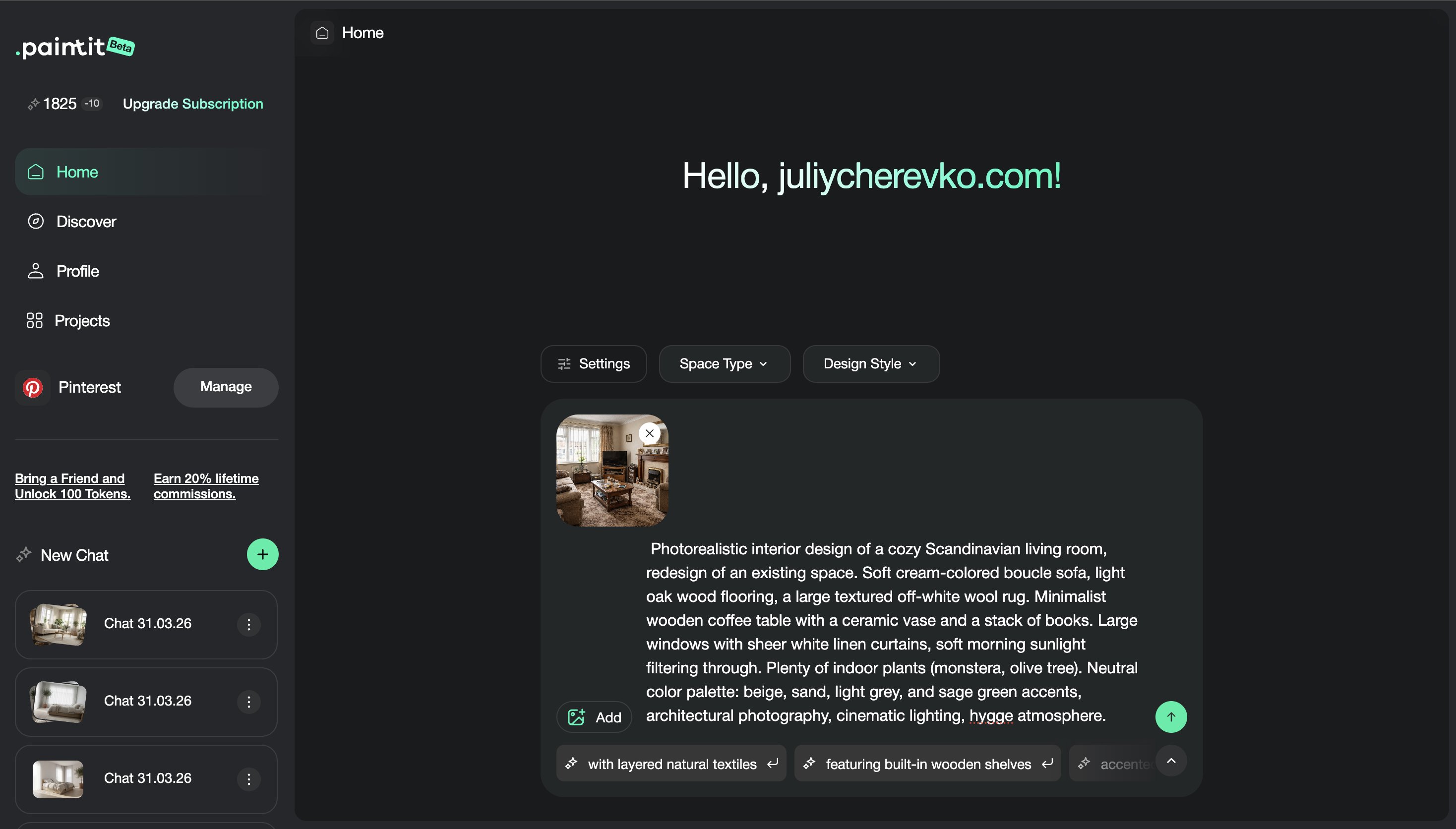
Transform this living room into a cozy Scandinavian interior with light oak furniture, white walls, soft beige textiles, warm natural daylight, and a calm airy atmosphere. Keep the room layout and window positions unchanged.
Bedroom — Japandi
Transform this bedroom into a calm Japandi space with light wood furniture, warm beige walls, soft linen curtains, minimal decor, and natural daylight. Keep the layout and proportions unchanged.
Bathroom — spa style
Redesign this bathroom as a premium spa-style space with light beige stone, a floating vanity, soft indirect lighting, frameless glass, and a calm luxury atmosphere. Keep the layout unchanged.
Exterior and commercial concept cards
House exterior — organic modern
Redesign this house exterior in an organic modern style with warm wood cladding, off-white textured walls, dark slim window frames, soft landscaping, and a premium natural look. Keep the building shape and window placement unchanged.
Cafe interior — warm contemporary
Transform this cafe interior into a warm contemporary concept with oak finishes, soft ambient lighting, built-in seating, textured plaster walls, and a premium welcoming atmosphere. Keep the layout unchanged.
Best practice: Full Redesign prompts work best when you describe the whole direction clearly, but do not overload the request with too many unrelated instructions.
How to Iterate and Compare Results
Full Redesign works best as a concept exploration workflow, not as a one-shot generation.
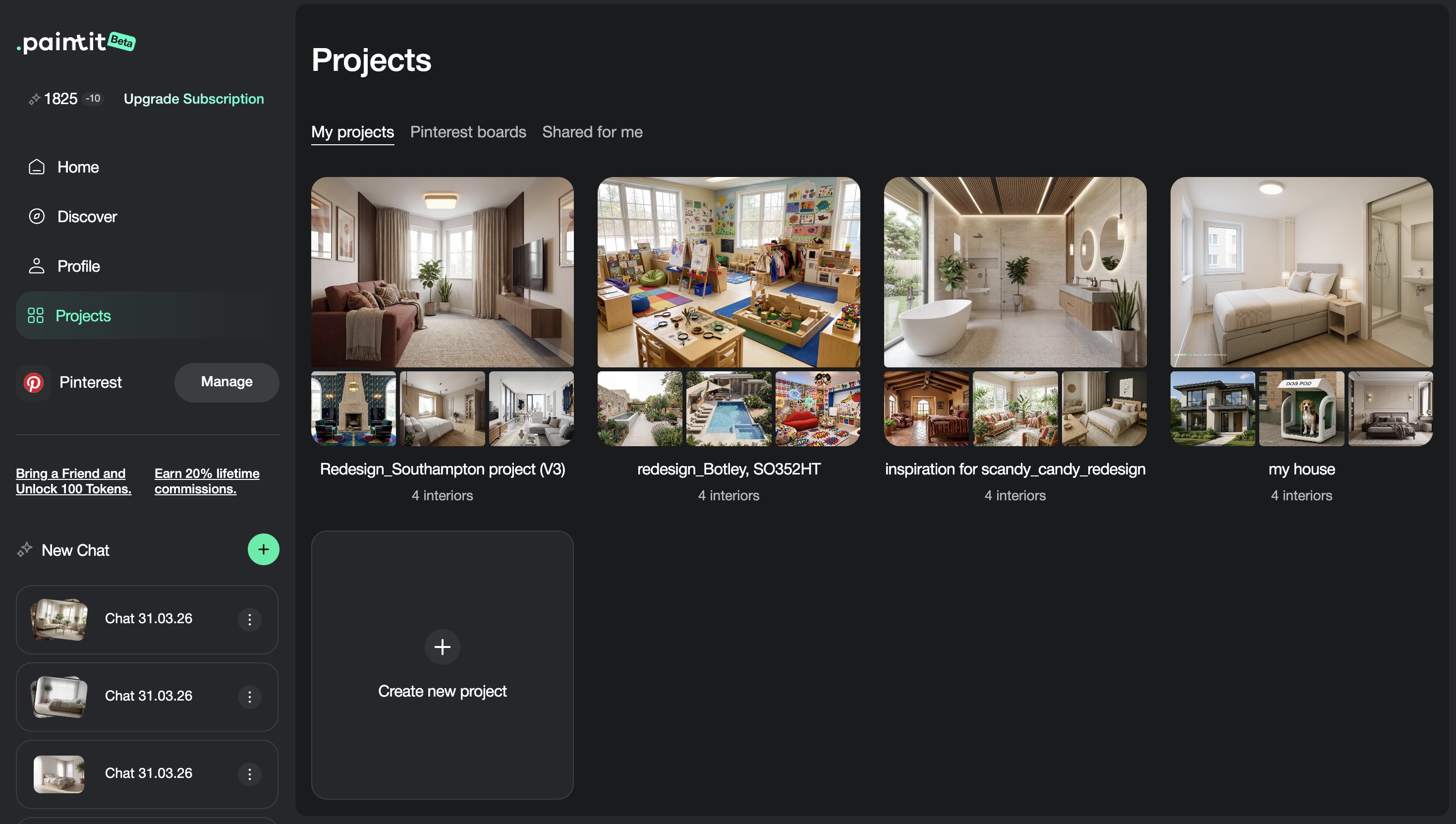
In practice, it is better to create several strong directions, compare them, and then refine the most promising one. This is where Full Redesign becomes especially useful: it helps you move quickly across different concept options.
A simple comparison workflow
Version 1 — safe and commercially usable direction
Version 2 — warmer or softer variant
Version 3 — bolder premium concept
Next step — save the strongest direction and refine from there
This approach makes Full Redesign more useful for client work, real estate previews, and internal design decision-making.
Frequently Asked Questions
What is the difference between Full Redesign and Repaint?
Full Redesign changes the overall concept of the space, while Repaint is better for testing wall color or a narrower finish-level change.
Can I keep the layout unchanged in Full Redesign?
Yes. Add a clear constraint such as “Keep the room layout unchanged” or “Preserve the architecture and proportions.”
Is Full Redesign good for exteriors?
Yes. It works well for testing new facade moods, materials, and curb-appeal directions while keeping the building structure recognizable.
Should I mix several styles in one Full Redesign prompt?
Usually no. One strong style direction is more effective than mixing several conflicting ones.
How many versions should I generate?
Usually two to four strong directions are enough to compare before choosing which one to refine further.
Is Full Redesign better for empty rooms or already furnished rooms?
It works for both, but if the room is completely empty and the goal is to add a full furnishing concept, Empty Room Setup may be even more precise for that specific use case.
Try a Full Redesign in Paintit
Upload a room, facade, or commercial space, choose one clear design direction, and explore stronger concept transformations with Full Redesign.
Trending
How to Write Better Prompts for Paintit.ai
How to Pick a Front Door Color: Use AI to Visualize It First
How to Get the Best Results in Paintit.ai
7 Best Apply Design Alternatives in 2026: Full Review
Selling the Fully Furnished Dream: Automating Interior Outfitting with Agentic AI for Developers
Related articles
8 min read
How to Use Full Redesign in Paintit.ai
Learn how to use Full Redesign in Paintit.ai to transform interiors, exteriors, and empty spaces with clearer style direction, better control, and stronger visual results
Yulii Cherevko
CEO paintit.ai
8 min read
How to Write Better Prompts for Paintit.ai
How to Write Better Prompts for Paintit.ai: A Practical Prompting Guide Meta description: Learn how to write better prompts for Paintit.ai with a simple formula, clear prompting patterns, reference image tips, practical examples, and common mistakes to avoid.
Yulii Cherevko
CEO paintit.ai
8 min read
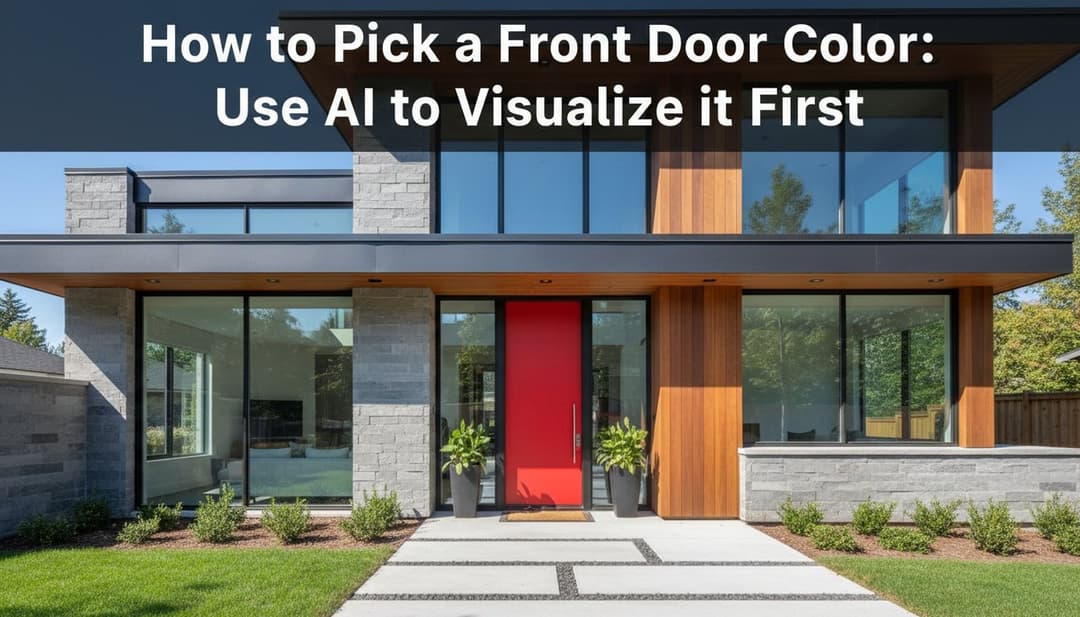
How to Pick a Front Door Color: Use AI to Visualize It First
Choosing a front door color is hard. Learn how to use AI and Paintit.ai to visualize colors on your actual home before painting. Tips on trends & psychology
Yulii Cherevko
CEO paintit.ai
4 min read
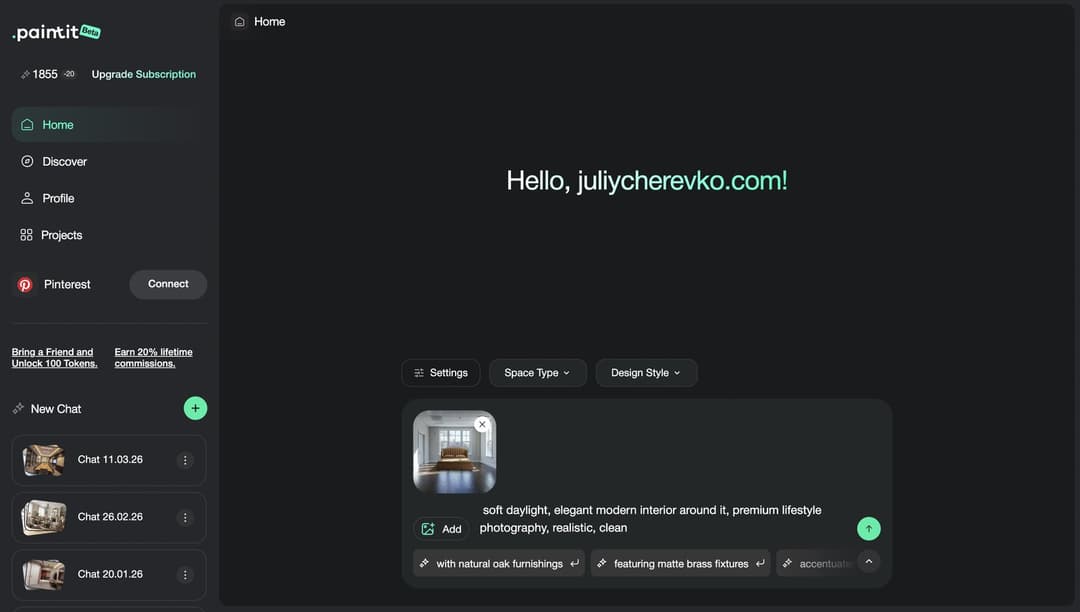
How to Get the Best Results in Paintit.ai
Learn how to get better results in Paintit.ai with the right photo, stronger prompts, better settings, and practical workflows for interiors, exteriors, real estate, rentals, and design professionals
Yulii Cherevko
CEO paintit.ai
9 min read
7 Best Apply Design Alternatives in 2026: Full Review
Explore the top Apply Design alternatives for 2026. Compare Paintit.ai, Homestyler, and more to find the best AI virtual staging and 3D home design software
Yulii Cherevko
CEO paintit.ai

6 min read
Selling the Fully Furnished Dream: Automating Interior Outfitting with Agentic AI for Developers
Learn how agentic AI and Paintit.ai automate interior design for developers. Scale outfitting, increase ROI, and reduce property time-on-market effectively
Yulii Cherevko
CEO paintit.ai