Sitemizin çalışması için zorunlu çerezler kullanıyoruz. Onay verirseniz deneyiminizi iyileştirmek, içeriği kişiselleştirmek ve trafiği analiz etmek için isteğe bağlı çerezler de kullanabiliriz. Bu amaçlarla site kullanım verilerinizi sosyal medya ve analiz ortaklarımızla paylaşabiliriz. “Kabul et” düğmesine tıklayarak çerezlerin Çerez Politikamızda açıklandığı şekilde kullanılmasını kabul edersiniz. Çerez ayarlarınızı istediğiniz zaman tarayıcınızdan değiştirebilirsiniz.
  • Hakkımızda
  • Fiyatlar
  • Blog
  • İletişim
AiEi

Ürünler

  • İç mimarlar için
  • E-ticaret için
  • Gayrimenkul sektörü için

Araçlar

Yapay zekâ ile mimari tasarım
Yapay zekâ ile konsept oluşturma
Yapay zekâ ile dış mekân tasarımı
Yapay zekâ ile ev tasarımı
Yapay zekâ ile ev boyama
Yapay zekâ ile peyzaj tasarımı
Yapay zekâ ile görselleştirme
Yapay zekâ ile oda tasarımı
Ev dış cephe tasarım aracı
Yapay zekâ ile sanal dekorasyon
Yapay zekâ ile banyo yenileme
Yapay zekâ ile kat planı oluşturma
Yapay zekâ ile mobilya tasarımı
Yapay zekâ ile mobilya yerleşimi
Ev dış cephe yenileme
Yapay zekâ ile boya rengi önizleme
Yapay zekâ ile mutfak yenileme
Yapay zekâ ile halı önizleme
Gayrimenkul fotoğraflarını iyileştirme
Yapay zekâ ile iç mekân görselleştirme
Yapay zekâ ile duvar tasarımı
Yapay zekâ ile kapı tasarımı
Yapay zekâ ile kat planı görselleştirme
Yapay zekâ ile zemin tasarımı
Araç yolu tasarım aracı
Parke taşı döşeme tasarım aracı
Ev genişletme planları
Yapay zekâ ile eskizden görselleştirmeye
Cephe çiziminden görselleştirmeye
Yapay zekâ ile dolap tasarımı
Yapay zekâ ile teras tasarımı
Yapay zekâ ile bahçe planlama
Yapay zekâ ile iç mekân yenileme
Yapay zekâ ile pencere önizleme
Mobilya boyası önizleme
Mutfak tezgâhı önizleme
Peyzaj aydınlatması tasarım aracı
Yapay zekâ ile perde önizleme
Yapay zekâ ile görselleştirme kalitesini artırma

Kullanım alanları

Yapay zekâ ile mutfak tasarımı
Yapay zekâ ile oturma odası tasarımı
Yapay zekâ ile yatak odası tasarımı
Yapay zekâ ile banyo tasarımı
Yapay zekâ ile peyzaj tasarımı
Yapay zekâ ile giyinme odası tasarımı
Yapay zekâ ile ofis tasarımı
Yapay zekâ ile havuz tasarımı
Yapay zekâ ile çamaşır odası tasarımı
Yapay zekâ ile restoran tasarımı
Yapay zekâ ile sınıf tasarımı
Yapay zekâ ile bodrum katı tasarımı
  • Hizmet Koşulları
  • Gizlilik Politikası
  • Güven
  • Satış ortaklığı programı
Logo
Paintit.ai: ücretsiz yapay zekâ destekli iç mekân tasarım aracı

© 2026

Ukrayna'yı destekleyin
PAINTITAI LTD, 52 Leytonstone road, London, E15 1SQ, UK
  • English/
  • Español/
  • Português (Brasil)/
  • Deutsch/
  • Français/
  • Italiano/
  • Polski/
  • Bahasa Indonesia/
  • Türkçe
Paintit.ai ile ücretsiz yapay zekâ destekli ev tasarımı
  • Fiyatlar
  • Hakkımızda
  • Blog
  • İletişim
/Blog/AI Style Transfer Room Photo
Paintit.ai Guides

6 min. reading

How to Use AI Style Transfer on a Room Photo in Paintit.ai 

avatar-blog

Yulii Cherevko

CEO paintit.ai

Published: 27 November 2026
Share
  • ChatGPT
  • Perplexity
  • Claude
  • Grok
  • Google AI
How to Use AI Style Transfer on a Room Photo in Paintit.ai

Page 
Contents: 

  • 1. Open Style Transfer in the Tools Menu
  • 2. Upload the Room Image and Add Your References
  • 3. Compare Three Settings With the Same Images
  • 4. Switch Back to Chat for a Specific Edit

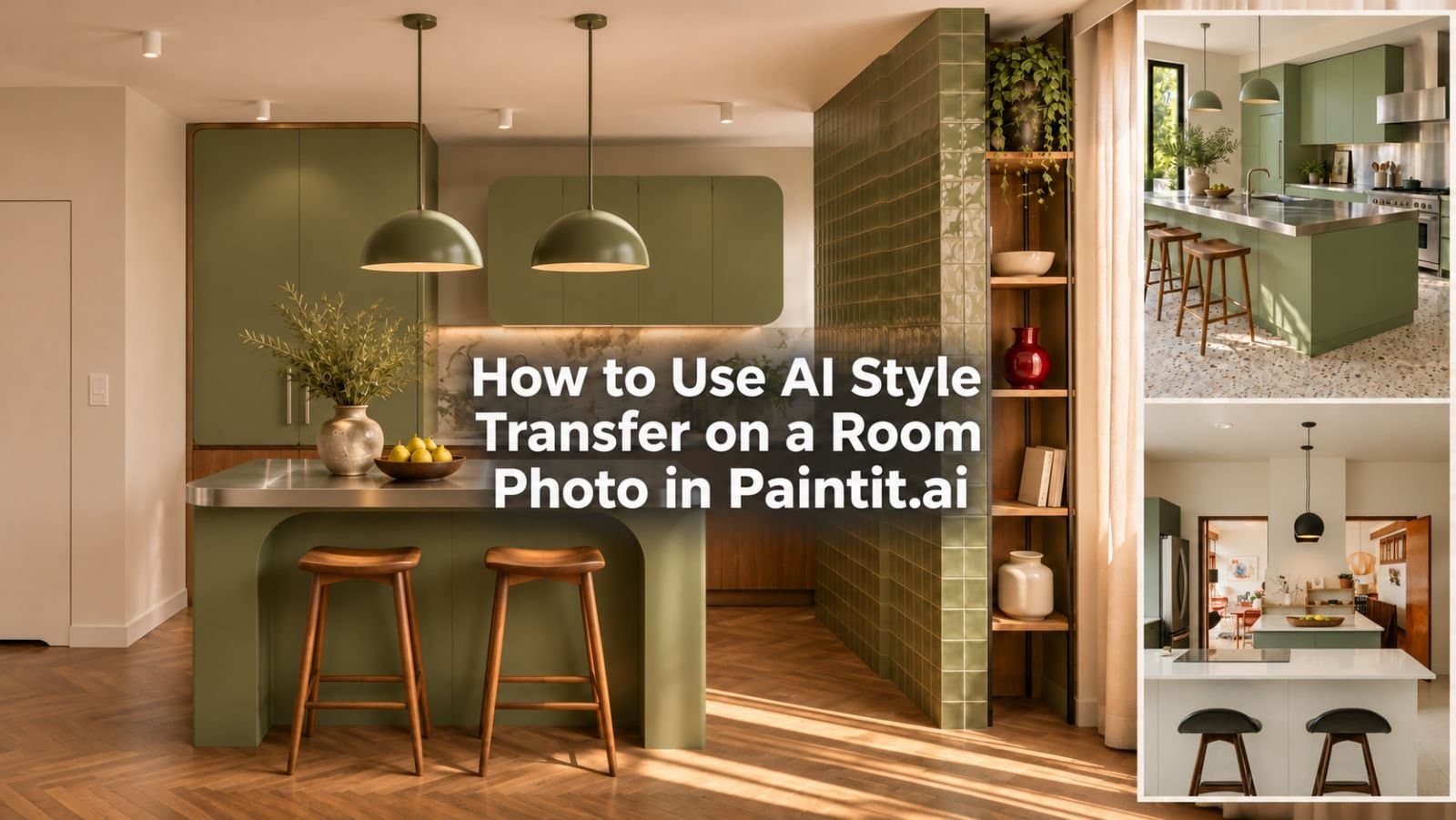
To apply a style to a room photo in Paintit.ai, open Tools → Design → Style Transfer, upload your room image, and add up to five reference photos. Start with Preserve layout to explore colors and finishes around your existing arrangement, or choose Reimagine when you are open to changing furniture and layout. You can leave the additional prompt blank and switch back to chat when you want to describe a specific edit.

Open Style Transfer in the Tools Menu

On desktop, click the panel icon at the top of the right-hand toolbar if you only see a column of icons. Expand Design, then select Style Transfer. The tool opens in the right panel.

Collapsed Tools rail above the expanded Design menu with Style Transfer visible
Open the right-hand Tools panel, then expand Design to find Style Transfer.

Here is what you can set in the panel:

Control What it does
Room photo → Upload room photo Sets the room or existing concept you want to change.
Reference photos Accepts up to five images. The first leads the style direction. The others add cues for colors, materials, and character. Use + to add your own images or browse Explore Gallery and expand it with More.
Design freedom Preserve layout aims to keep furniture positions and sizes while transferring colors, materials, and finishes. Reimagine allows new furniture, layouts, and finishes while aiming to keep the room architecture and camera view.
Editorial Photo A separate toggle for magazine-style composition, lighting, and material presentation. It works with either Design freedom setting.
Additional prompt (optional) Lets you specify a detail the references alone might not communicate.
Generate Runs Style Transfer using the selected inputs and settings.
Style Transfer panel with room upload, reference controls, design settings, and Generate
Set the room and references before choosing how much of the design to change.

Upload the Room Image and Add Your References

The starting image for this test was a kitchen concept with an arched sage-green island, a green tiled partition, cream upper cabinets, and a pendant made of repeating arches. Those landmarks make it easy to see what each version keeps or changes.
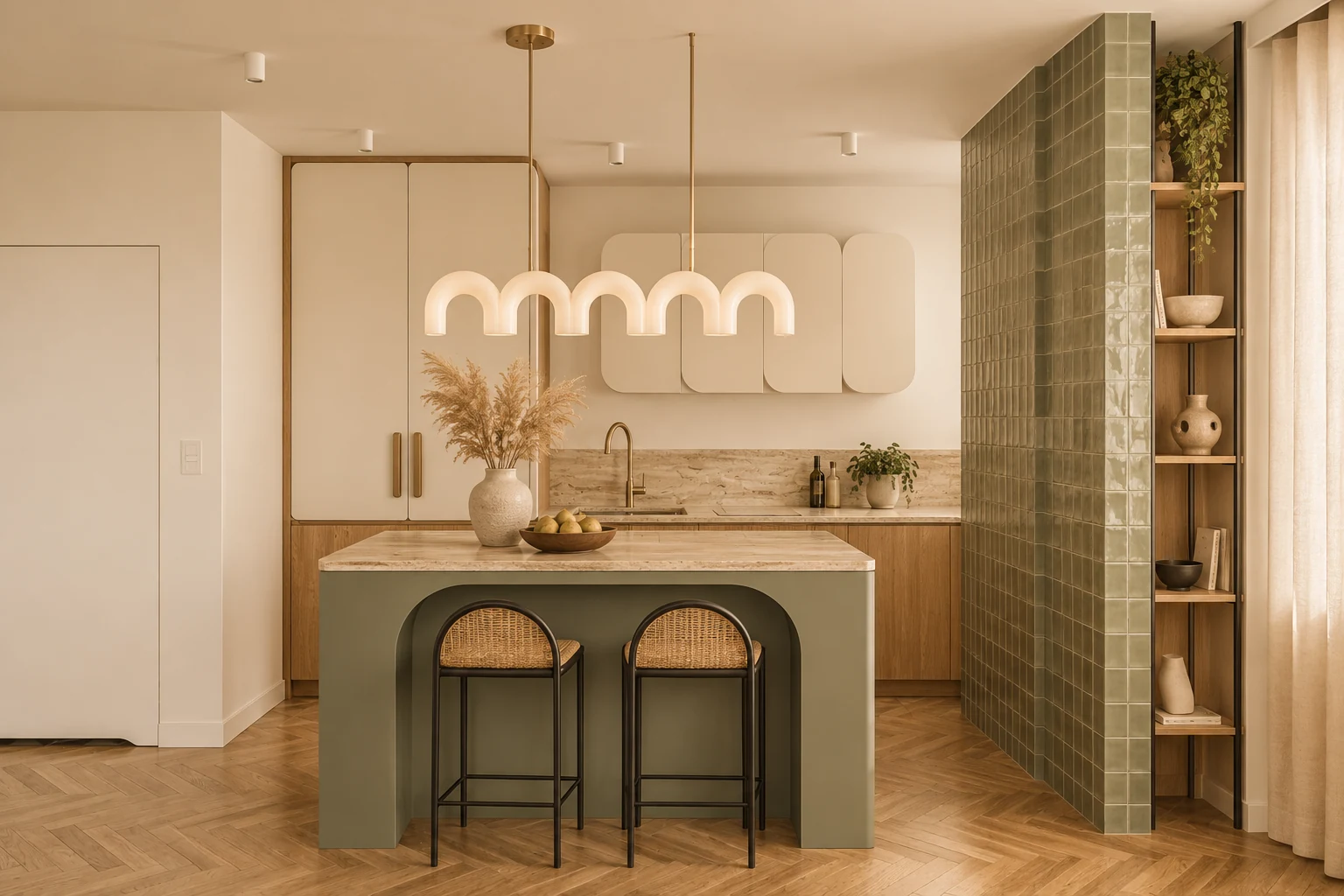
Original kitchen concept with cream cabinets, an arched sage-green island, and woven stools
Use the island, tiled partition, pendant, and stools to compare the later results.

Click Upload room photo and choose your image. While Style Transfer is active, the regular chat composer is replaced by a tool chip at the bottom. You can write in the optional prompt field inside the tool, or click × on the chip to exit the tool and bring the chat composer back.

Kitchen loaded in Style Transfer with the close control on the bottom tool chip
Click the × on the tool chip to return to regular chat.

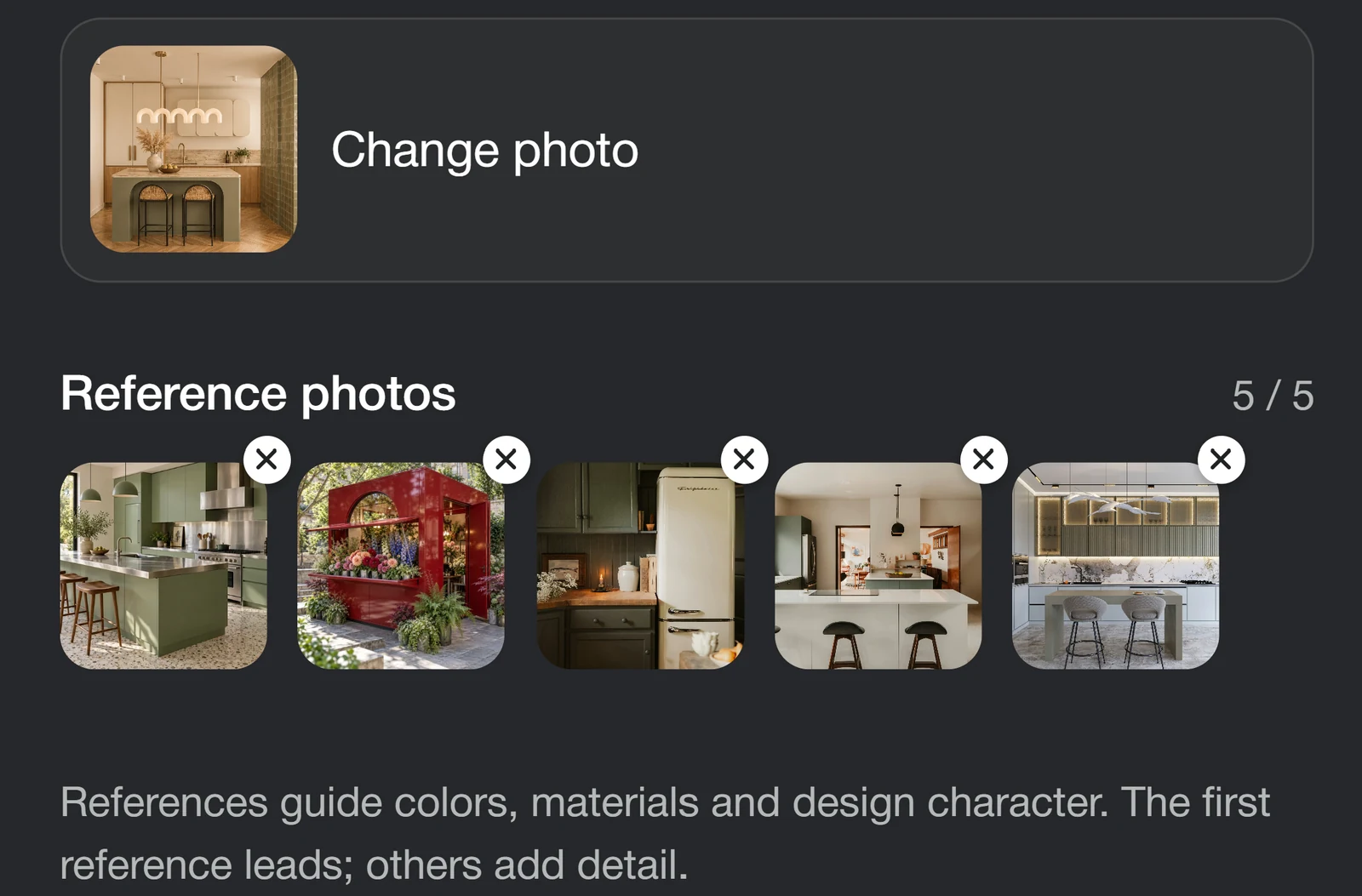
We picked two references from Explore Gallery and added three images from Unsplash. The first reference was a sage-green kitchen with dome pendants, wooden stools, and a metal-look worktop. A red lacquered flower pavilion came second. The other references added examples of cabinetry, lighting, and stone. Put the reference that best represents the direction you want first.
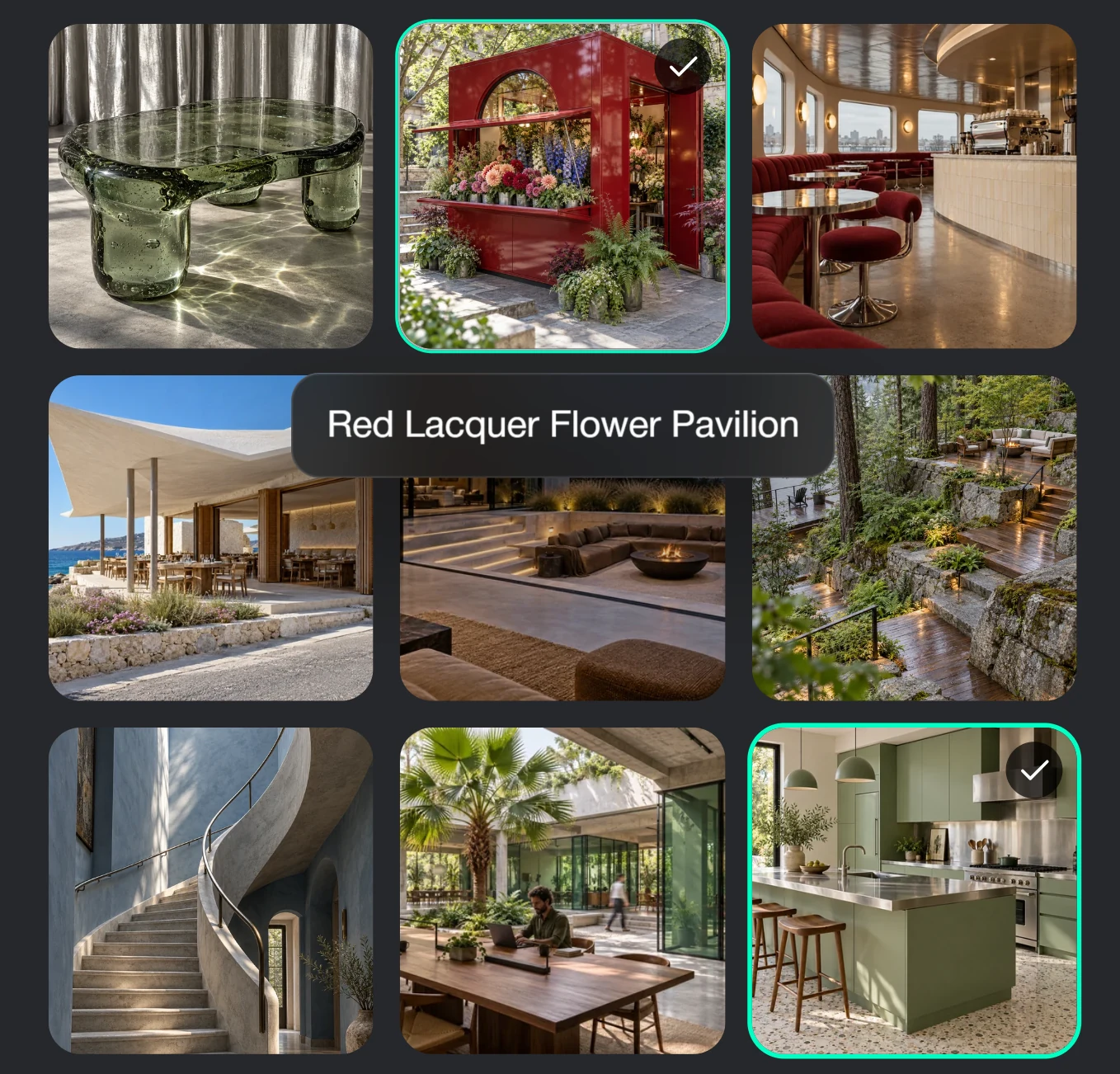
Explore Gallery with a red flower pavilion and a sage-green kitchen selected
The two selected gallery images contribute different visual cues.
Five selected reference thumbnails, led by a sage-green kitchen
The first image leads the direction. It was followed by one more gallery reference and three Unsplash images.

Have a room photo and a reference ready? Open Style Transfer, upload your room photo, and add your lead reference first.

Start with My Room Photo

Compare Three Settings With the Same Images

All three runs used the same room image and the same five references in the same order. Additional prompt stayed empty throughout. Each result is one example of what the settings can produce. Compare it with the original before deciding what to keep.

Run 1 — Preserve Layout, Editorial Photo Off

Select Preserve layout, leave Editorial Photo off, and leave the optional prompt blank. Click Generate.
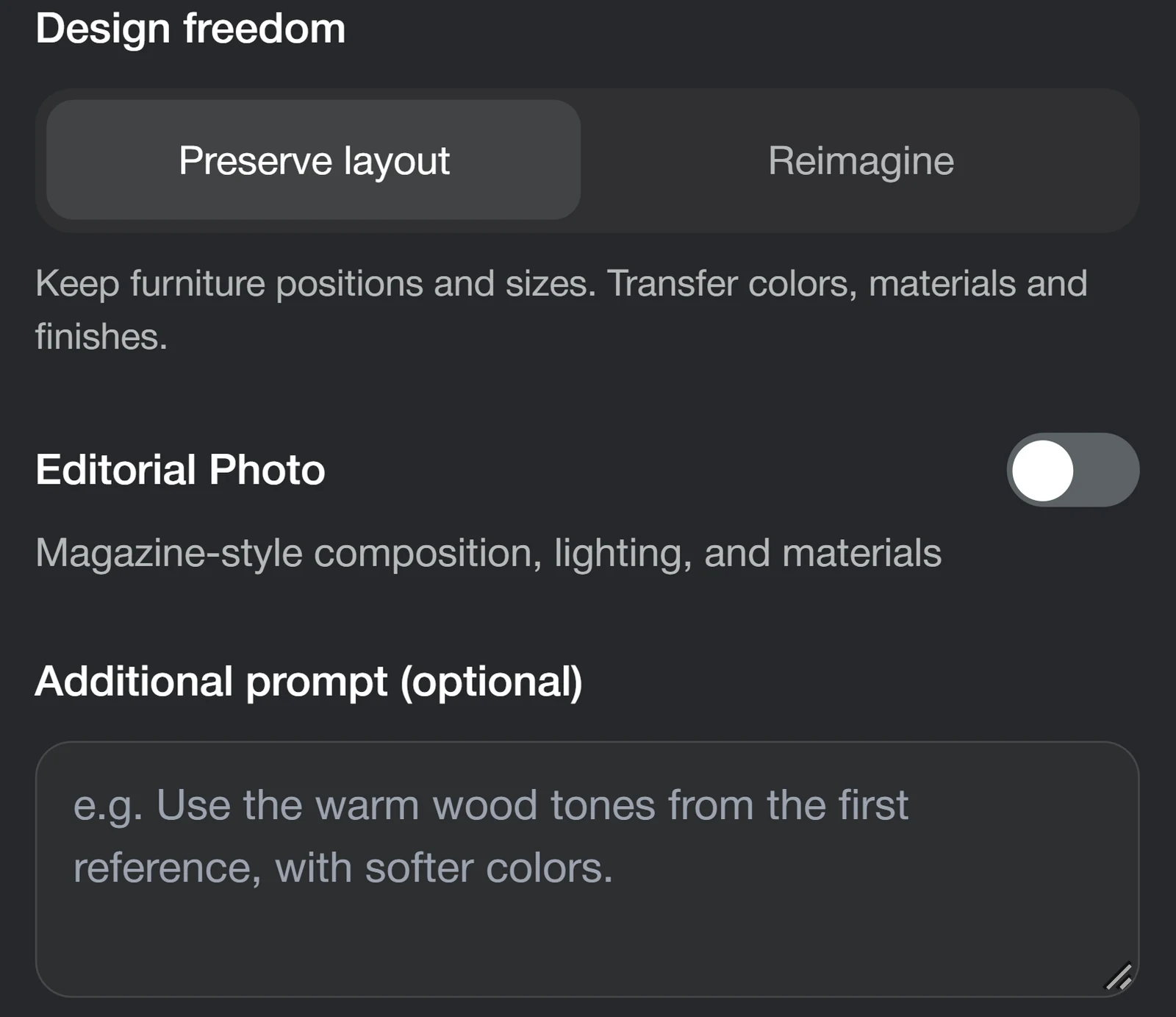
Preserve layout selected with Editorial Photo off and the prompt field empty
Run 1 starts with Preserve layout and no additional prompt.

The arched island, tiled partition, two woven stools, and repeating-arch pendant stayed recognizable. The cream cabinet fronts turned olive green, the uppers gained a ribbed finish, and the backsplash became more heavily veined. The island top took on a reflective metal look. The strongest changes were in the finishes, with the room still reading as the same kitchen.
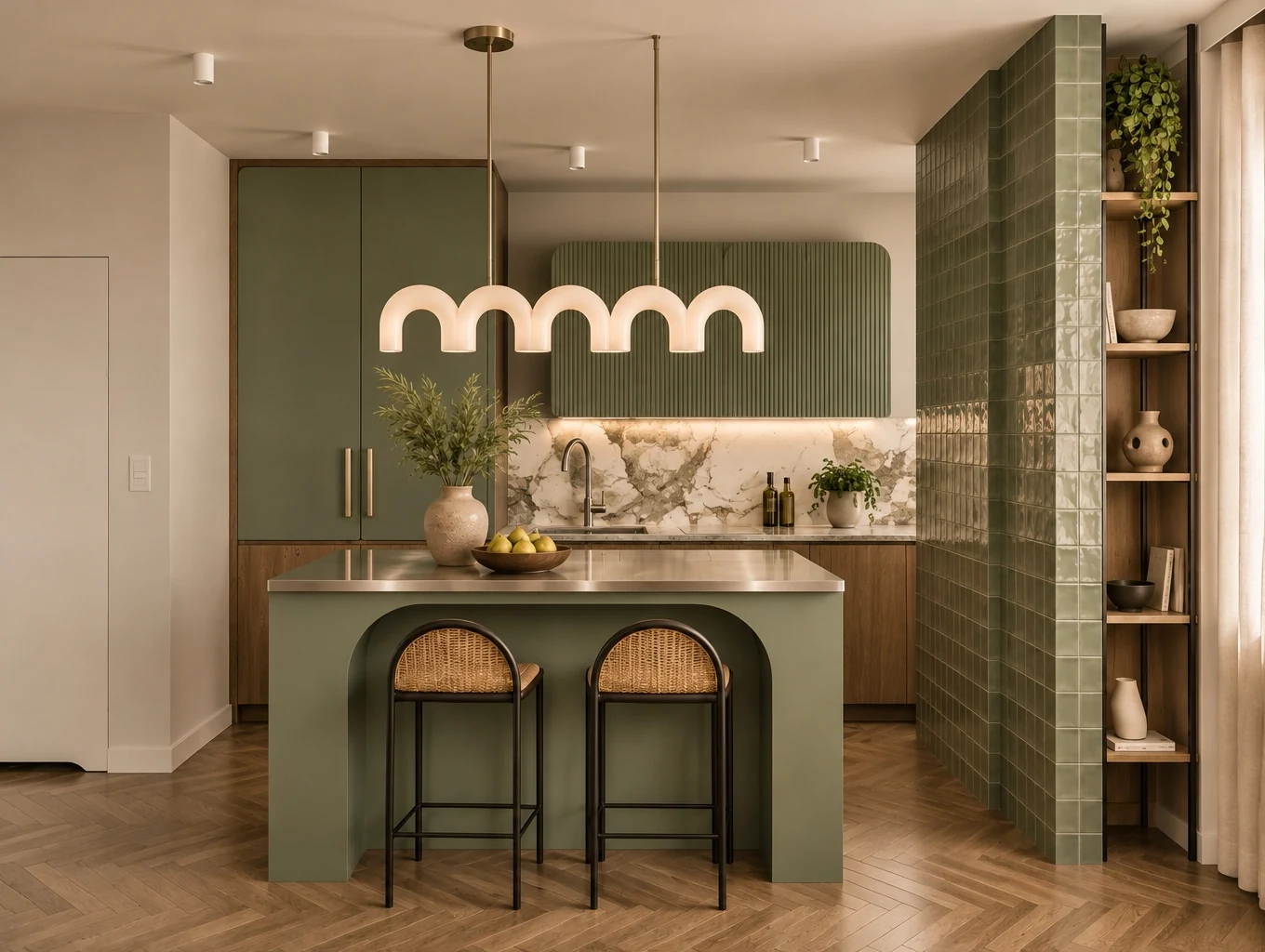
Preserve layout result with olive ribbed cabinet fronts and a reflective island top
The finishes changed while the island, stools, and pendant stayed recognizable.

Run 2 — Preserve Layout, Editorial Photo On

Keep Preserve layout selected and turn Editorial Photo on. Generate again with the same images and no additional prompt. This is the pair to compare if you want to see how Editorial Photo changes the presentation while the layout setting stays fixed. Look at the lighting, the visibility of material texture, and whether the island, seating, and fixtures still read the same way.

Preserve layout selected with Editorial Photo on and the prompt field empty
Run 2 changes one setting by turning on Editorial Photo.

Run 3 — Reimagine, Editorial Photo On

Switch Design freedom to Reimagine, keep Editorial Photo on, and generate again with the same five references and the prompt still blank.

Reimagine selected with Editorial Photo on and the prompt field empty
Run 3 changes the Design freedom setting while keeping Editorial Photo on.

The arched island and green tiled partition are still recognizable, but the individual pieces changed more than in run 1. Two olive dome pendants replaced the repeating-arch light, wooden stools replaced the woven pair, and a glossy red vase appeared on the shelf. The pendants, stools, and reflective worktop echo the lead kitchen reference. The red vase recalls the lacquered pavilion. Those are visible similarities, not a record of which reference caused each change. Crisp sunlight now crosses the floor, and the layout remains recognizable even though the mode allows broader changes.

Reimagine result with olive dome pendants, wooden stools, and a red shelf vase
The island and tiled partition are recognizable, with more visible changes to the fixtures and furnishings.

For a finishes-first comparison, start with Preserve layout and keep Editorial Photo fixed while you decide how much to change. If you're open to different fixtures or furnishings, try Reimagine on the same inputs. Check the generated image against the original for moved, resized, or replaced elements before relying on the concept. Take actual measurements and check material samples before buying or building.

Switch Back to Chat for a Specific Edit

After the last run, click × on the Style Transfer chip to return to chat. Continue from the result you want to refine. If you have several results in the conversation, select the one you want to edit as the main image. In this example, the green kitchen from run 3 was the starting point, Nano Banana 2.1 was selected in chat, and the image-count control was set to 2 to generate two variants in one request.

Chat composer below the kitchen result with Nano Banana 2.1 and two images selected
The final edit uses Nano Banana 2.1 and requests two variants in one chat message.

Here is the exact prompt used for the chat edit:

Elevate this kitchen to a high-end editorial look: keep the exact layout, green tile column, and arched island. Use deep sage-green lower fronts with warm oak accents, a veined travertine countertop, a sculptural arched opal-glass pendant, and woven rattan stools. Add refined styling: pampas vase, fruit bowl, ceramics on the shelves. Warm, soft, cinematic natural light with realistic reflections on the glazed tiles, ultra-detailed, architectural photography.

In the selected variant, the island and green tiled partition are still in view. Two glowing arch-shaped pendants replaced the green domes, woven rattan-style stools replaced the wooden stools, and a light stone-look top replaced the reflective metal finish. The green lower fronts, pampas stems, fruit bowl, and neutral shelf ceramics carry the new direction. Both variants are visible as thumbnails. The larger image shows the selected one.

Two chat variants above the selected kitchen with glowing arch pendants and woven stools
The selected variant updates the fixtures, finishes, and styling while keeping the kitchen recognizable.

For more control over the next edit, use the Paintit.ai prompting guide to write down what should change and what should stay. If you are still choosing your images, see how to select and use style references.

Try Style Transfer on your room. Pick one lead reference, run a Preserve layout version, and check the result against your original image. Open Style Transfer in Paintit.ai.

  • English/
  • Español/
  • Português (Brasil)/
  • Deutsch/
  • Français/
  • Italiano/
  • Polski/
  • Bahasa Indonesia/
  • Türkçe

Trending 

Ideas
12 min read
9 Christmas Bathroom Decor Ideas for Small Spaces
Ideas
12 min read
9 Christmas Mantel Decor Ideas for Your Fireplace
Ideas
12 min read
Christmas Bedroom Decor Ideas for a Cozy Room
kitchen design
12 min read
10 Christmas Kitchen Decor Ideas That Leave Room to Cook
Ideas
11 min read
Christmas Dining Table Decor Ideas for Real Homes

Related articles 

How to Use AI Style Transfer on a Room Photo in Paintit.ai
Paintit.ai Guides
27 november 2026

6 min read

How to Use AI Style Transfer on a Room Photo in Paintit.ai

Use reference images to restyle a room photo. Follow three kitchen setups with the same images, then refine a result in chat.

avatar-blog

Yulii Cherevko

CEO paintit.ai

9 Christmas Bathroom Decor Ideas for Small Spaces
Ideas
23 november 2026

12 min read

9 Christmas Bathroom Decor Ideas for Small Spaces

Nine Christmas decorating ideas for small bathrooms and guest cloakrooms, with useful surfaces kept clear and a photo-based way to compare the look.

avatar-blog

Yulii Cherevko

CEO paintit.ai

9 Christmas Mantel Decor Ideas for Your Fireplace
Ideas
19 november 2026

12 min read

9 Christmas Mantel Decor Ideas for Your Fireplace

Nine practical Christmas mantel ideas for existing artwork, TVs, narrow shelves, and garland-free displays, with a photo-based way to compare your options.

avatar-blog

Yulii Cherevko

CEO paintit.ai

Christmas Bedroom Decor Ideas for a Cozy Room
Ideas
18 november 2026

12 min read

Christmas Bedroom Decor Ideas for a Cozy Room

Nine practical ways to decorate a bedroom for Christmas, with familiar bedding, clear nightstands, optional trees, and photo-based ideas for your own room.

avatar-blog

Yulii Cherevko

CEO paintit.ai

10 Christmas Kitchen Decor Ideas That Leave Room to Cook
kitchen designIdeas
17 november 2026

12 min read

10 Christmas Kitchen Decor Ideas That Leave Room to Cook

Ten practical Christmas kitchen ideas for cupboards, windows, shelves, and islands, with clear cooking space and a photo-based way to compare the look.

avatar-blog

Yulii Cherevko

CEO paintit.ai

Christmas Dining Table Decor Ideas for Real Homes
Ideas
17 november 2026

11 min read

Christmas Dining Table Decor Ideas for Real Homes

Ten Christmas table ideas that leave space for dinner, with practical arrangements for different table shapes and a photo-based way to compare the look.

avatar-blog

Yulii Cherevko

CEO paintit.ai