10 min. reading

Yulii Cherevko
CEO paintit.ai
Published: Updated:
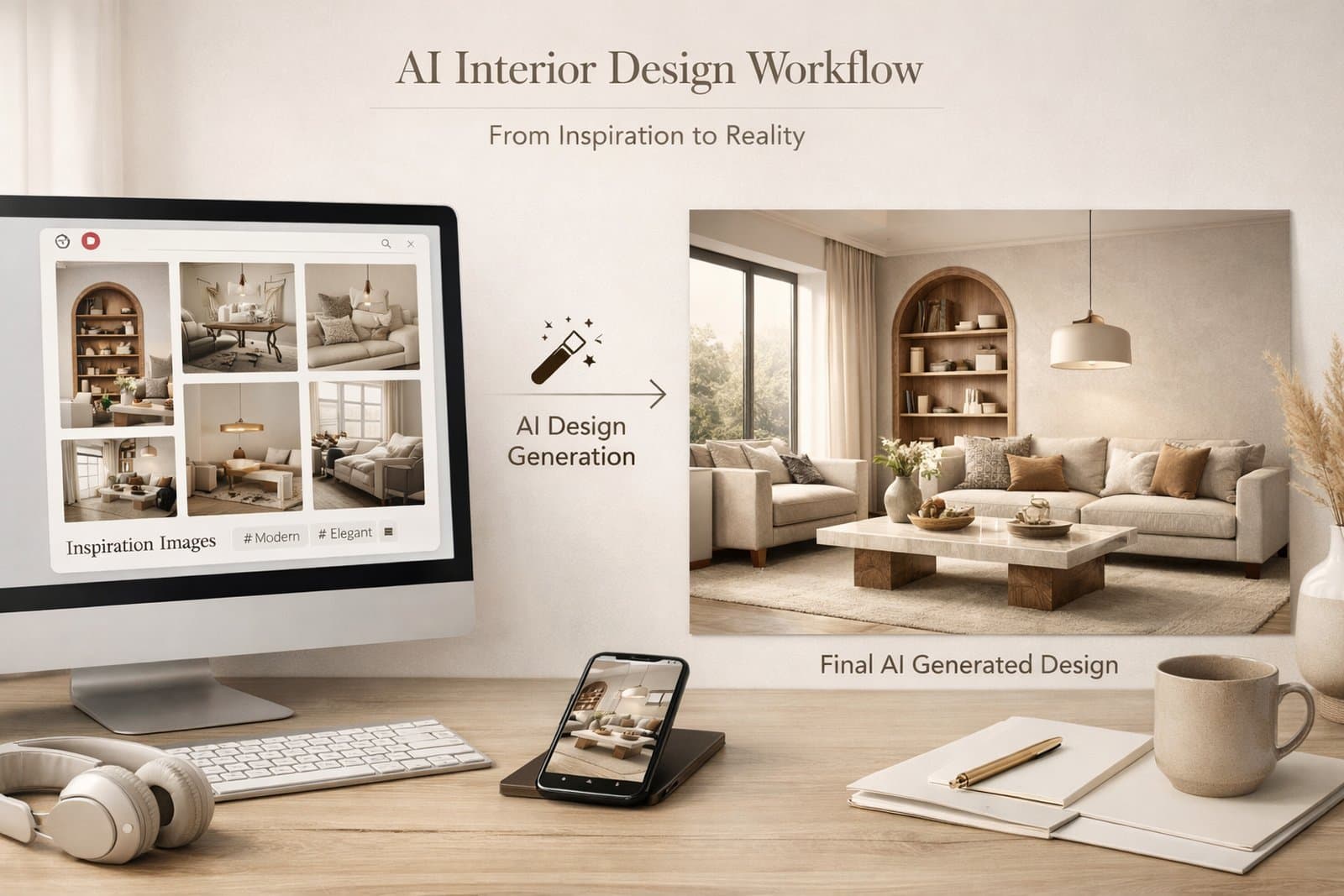
To turn a Pinterest mood board into a room design, choose the few images that explain your direction, write down what to borrow from each, and test those choices against a photo of your own space. A board shows what you like. A brief adds what must stay, what can change, and which decision you want to make next.
Paintit.ai can bring selected Pinterest images into a design conversation as visual inputs. The useful work happens before generation: separating a tile reference from a lighting reference, and keeping both separate from the room you actually have.
If you are deciding how to make a mood board on Pinterest, start with a board named for the actual project, such as “Apartment Bathroom Refresh.” Save images freely at first, then create a smaller working selection. Keep the wider inspiration collection; you do not need to delete it to narrow this project.
Pinterest supports sections within a board, which can separate materials, colors, lighting, and furniture. Use those categories to find a reference quickly, not as a requirement to fill every category. A small paint refresh may need only a wall-color reference and the existing room photo.
An interior design mood board should include the things that will remain, too. Your dark floor or existing vanity may look out of place among the saved images, but leaving it out creates a misleading starting point. Put a photograph of it beside the proposed finishes before judging whether the direction works.
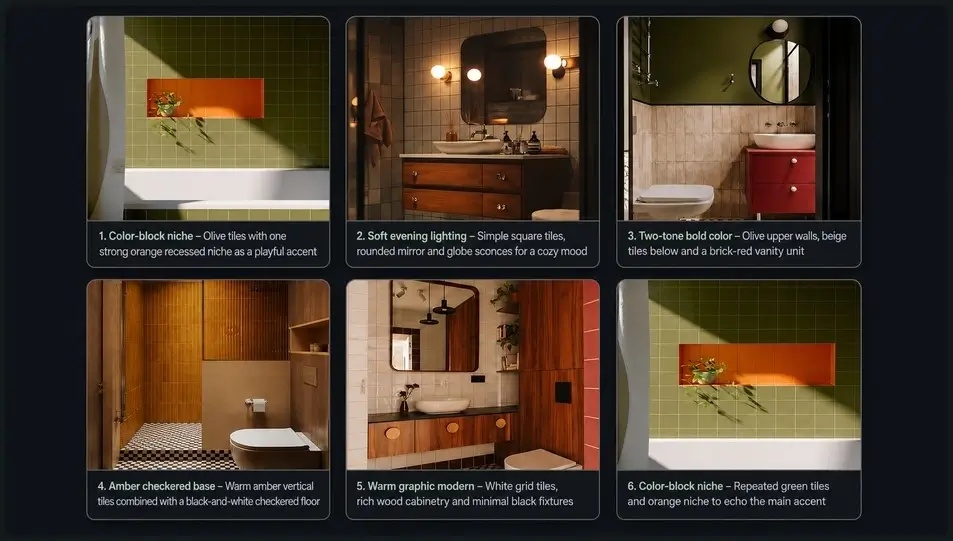
Write a short note for every selected image: “olive tile color, not this shower layout,” or “rounded mirror, not the wall paneling.” If two images do the same job, keep the one that communicates it most clearly. If one suggests a bright white bathroom and another suggests a dark wood-lined room, treat them as separate directions rather than asking for both at once.
Open the original source behind a Pin when you need a product name or material detail. A photograph alone cannot establish the tile specification, paint color, supplier, or price. Keep source links in your project notes so attractive references do not turn into an unsourced shopping list.
Before adding the images to a prompt, make a three-column list. The last column is as important as the middle one: it stops an appealing detail from bringing an unwanted room layout with it.
| Reference | Borrow This | Do Not Copy |
|---|---|---|
| Green-tiled bathroom | Muted olive color and simple tile rhythm | The shower position or window size |
| Wood vanity detail | Warm wood tone and plain cabinet fronts | The exact unit, dimensions, or plumbing |
| Mirror and wall lights | A rounded mirror and soft light around it | Electrical locations or a promised light level |
| Orange accent niche | A small area of warm contrast | A new recess in an existing wall |
This works for Pinterest interior design inspiration beyond bathrooms. A living-room Pin might contribute a sofa silhouette without its oversized footprint. A bedroom image might contribute layered textiles without its four-poster bed. Keep the visual cue; question whether the rest belongs in your room.
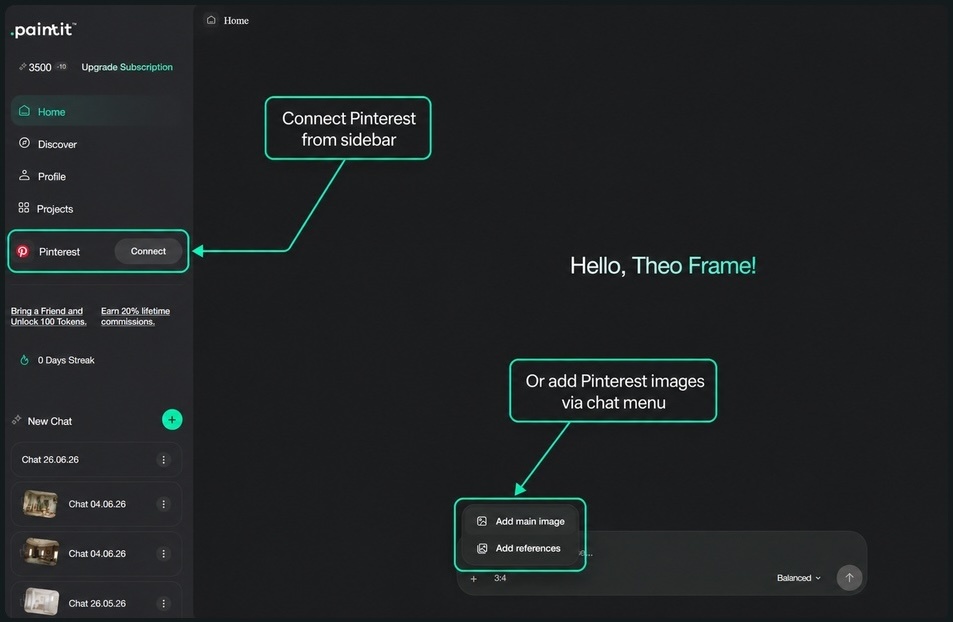
Paintit.ai’s Pinterest connection lets you use selected Pins as visual inputs without manually making a screenshot of every image. Keep two different tasks separate: developing a concept from an inspiration image, and exploring changes to your own room. They need different starting images.
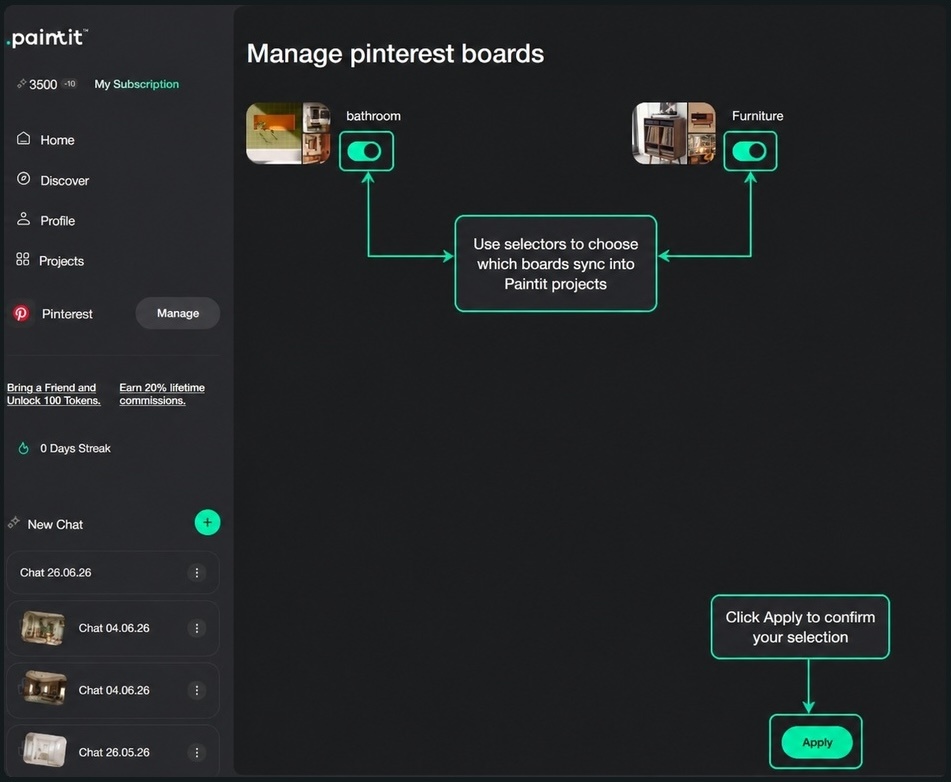
The screenshots below illustrate the connection and selection workflow. Interface labels may change; check the available controls in your account rather than expecting every screen to look identical.
Connect Pinterest in Paintit.ai, then choose the board relevant to the project. Review the account permissions before continuing. You need the bathroom references for a bathroom concept, not every kitchen, holiday home, and furniture idea you have ever saved.
When managing the connected boards, keep the working set focused on this room. Selecting a board is a way to access its Pins; it is not an instruction to combine every image into one design.
Open the selected board and review its Pins. Use your reference-role list to decide which ones belong in this particular request. A Pin that is beautiful but irrelevant to the decision can stay on the board without entering the prompt.
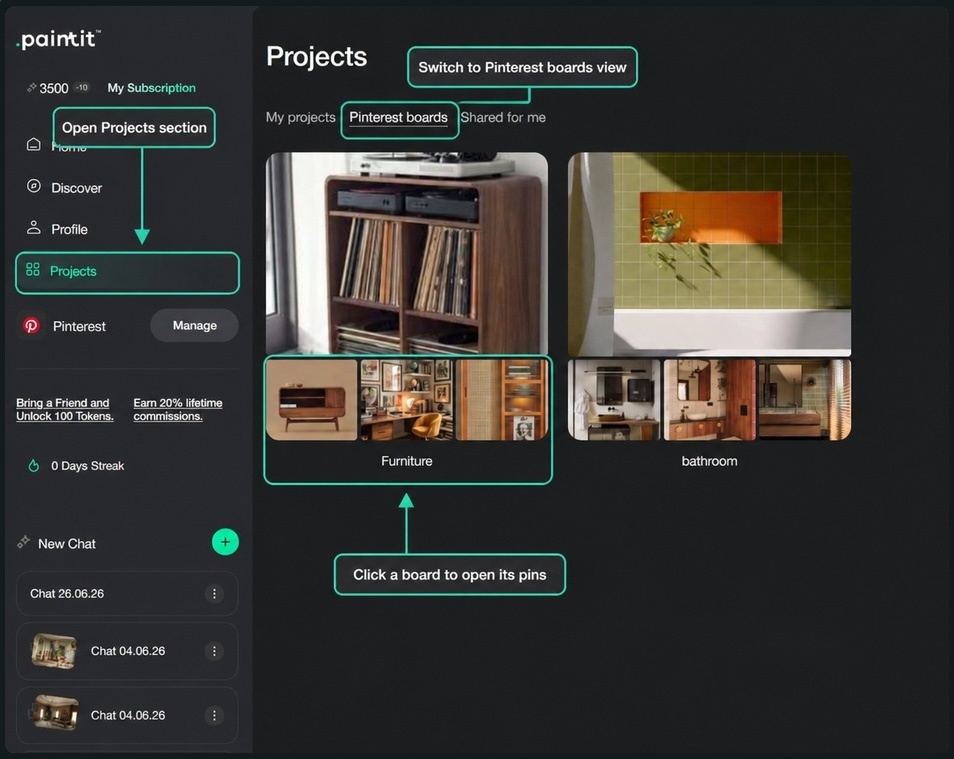
For your actual room, use your room photo as the main image. Choose an angle that shows the surfaces and fixed features involved in the change. Ask to keep windows, doors, the floor, and retained furniture, then check the result for unwanted changes. These instructions guide the concept; they do not lock geometry or guarantee preservation.
A Pinterest Pin can instead be a main image when you are exploring an independent concept based on that image. That is what the illustrated pin-to-chat example shows. It does not make the pictured bathroom your bathroom, and it should not be used to judge whether that layout fits your property.
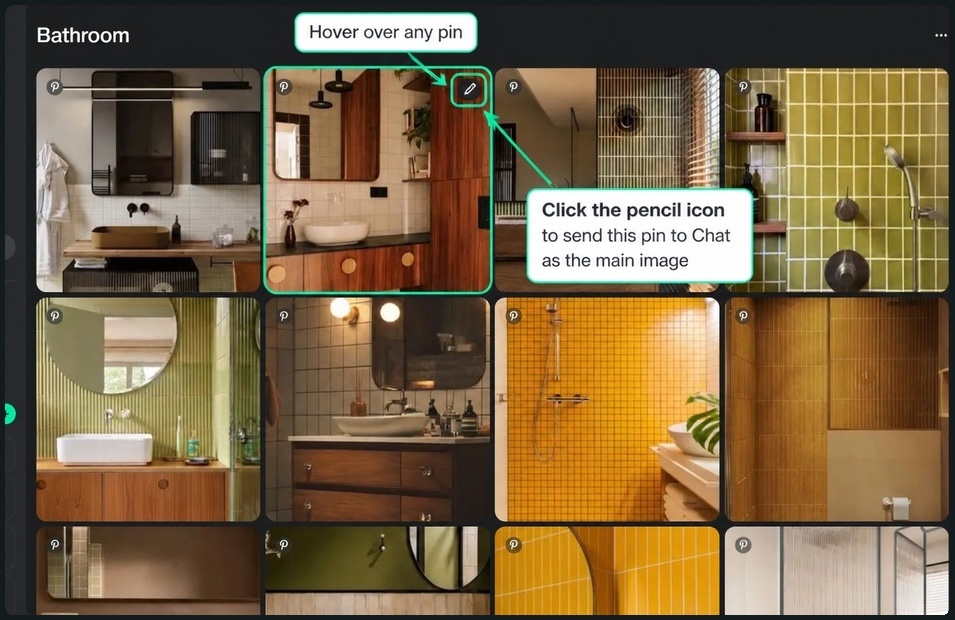
Check the main-image thumbnail before generating. If it shows an inspiration bathroom when you meant to redesign your own, change the starting image first. Adding more references will not correct the wrong base photograph.
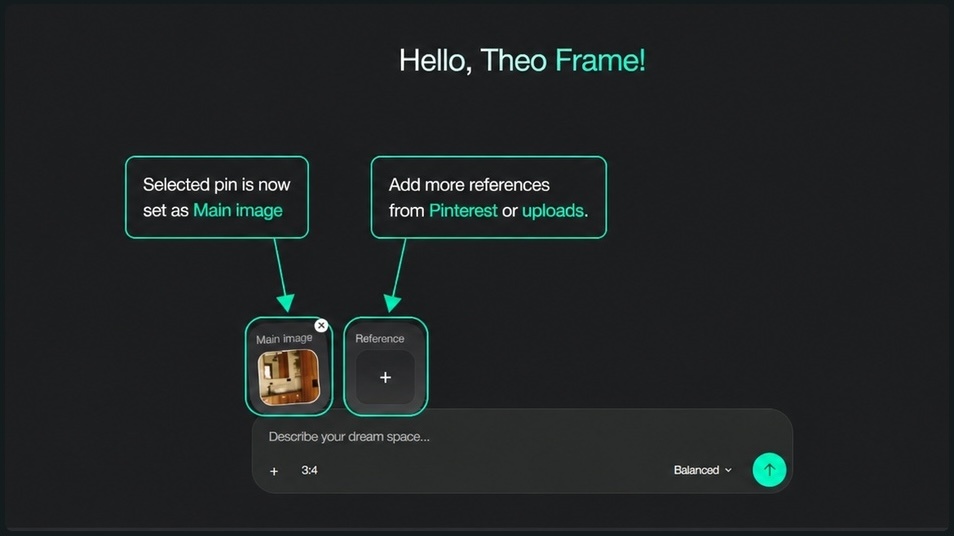
Use references for the visual cues you want to introduce. Paintit.ai supports selecting reference images from Pinterest as well as adding uploaded images. A clear material photograph may communicate the finish better than another full-room Pin.
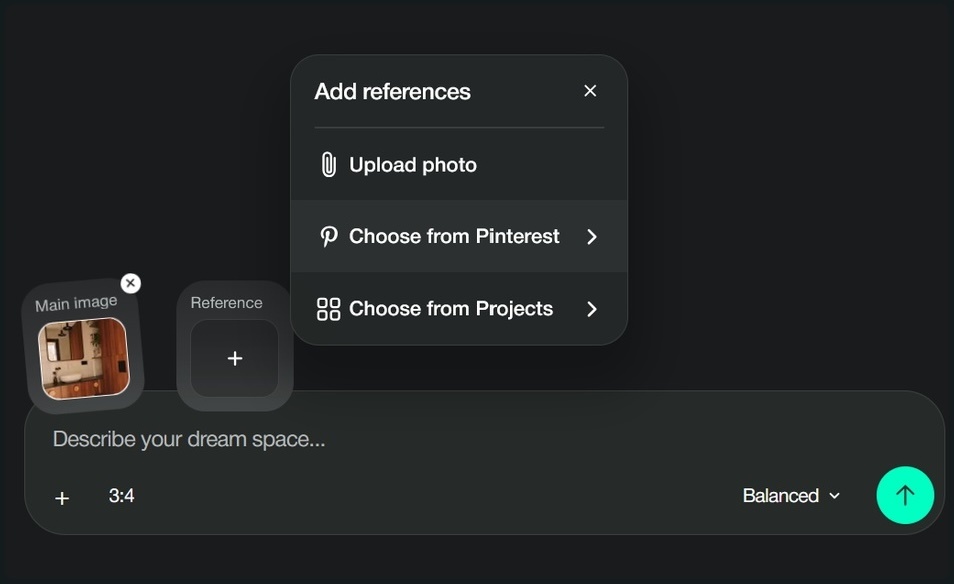
Check the input set before submitting: one main image for the space being explored, plus a few references with distinct roles. If you cannot explain why an image is there, leave it out of this request.
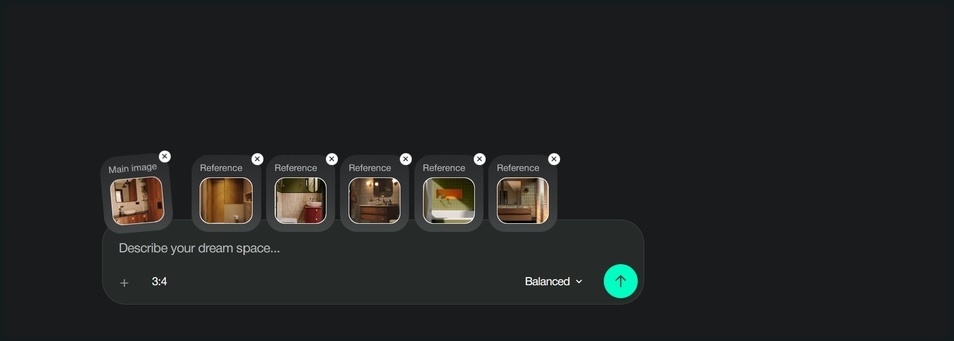
The illustrated selector shows a set of five references. You do not need to fill the selection: one or two focused images may be enough for a single decision. Use the limits shown in your account; five is not a design rule or a reason to add duplicates.
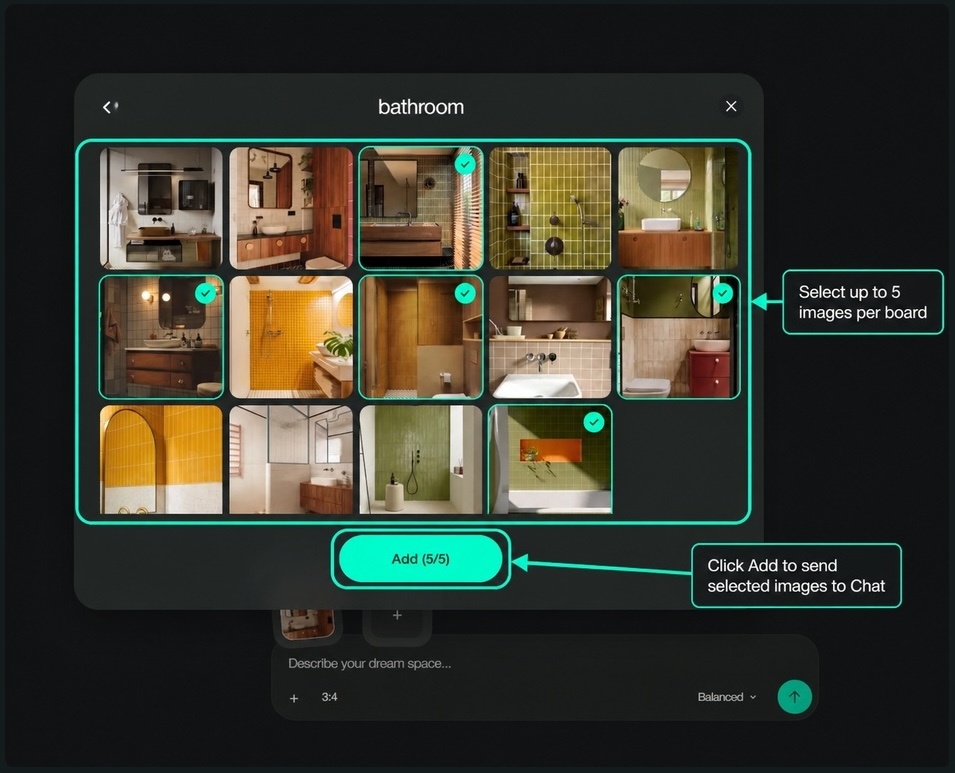
A useful brief combines the board with facts the images cannot supply. Write it somewhere you can revise it as decisions change. For a homeowner, that might be a short project note; for a designer, it becomes part of the client discussion.
Include the room’s purpose, the retained features, the changes to explore, what each reference contributes, and what must not happen. Add your actual budget separately, with a currency and a clear scope. A generated concept cannot confirm that its visible finishes and fittings are available within that budget.
This is an illustrative written brief, not a completed client project or a tested Paintit.ai output. It uses the green tile, warm wood, orange accent, and rounded mirror direction shown in the reference screenshots.
| Brief Field | Decision | Check Before Spending |
|---|---|---|
| Purpose | A warmer-looking everyday bathroom | Cleaning, moisture, and daily use |
| Keep | Existing door, window, fixture locations, and floor | Confirm these have not moved in the concept |
| Explore | Olive color, warm wood, a rounded mirror, and a small orange accent | Samples and suitable products |
| Avoid | A larger room, a new wall niche, or relocated plumbing | Compare directly with the starting photo |
| Next decision | Choose between an olive-led and a wood-led direction | Compare both before selecting individual products |
Use my uploaded bathroom photo as the main image. Explore a warm, graphic bathroom refresh without intentionally changing the visible room layout, door, window, floor, or fixture locations. Borrow the muted olive color from reference 1, the warm wood tone from reference 2, and the rounded mirror shape from reference 3. Use orange only as a small decorative accent; do not create a new wall niche. Do not copy any reference room as a whole. Keep the concept plausible for the space shown. Start with the olive-led direction.
Replace the reference numbers with the images you actually selected, and remove any instruction that does not apply. If you are keeping a vanity rather than replacing it, say so. If the floor will change, describe that as a separate decision instead of leaving conflicting instructions in the same request.
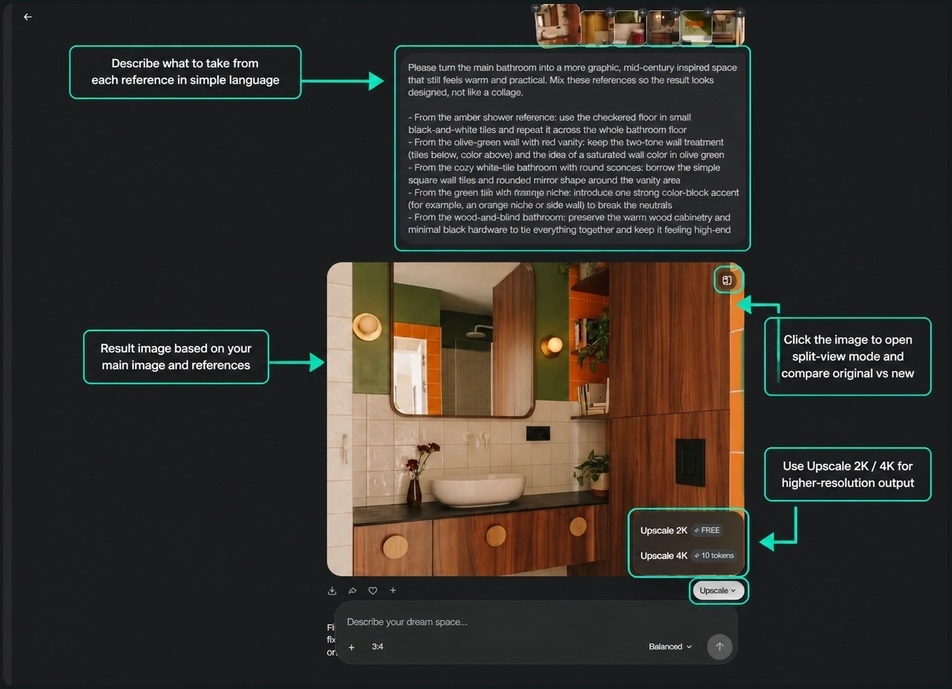
For the second concept, keep the same room photo and retained features. Change the emphasis: “Make warm wood the main visual feature and use olive more sparingly.” Comparing two named directions is easier than comparing unrelated generations where the layout, color, and camera angle all change.
A concept can match every saved reference and still fail your project. Check the original room photograph first. Count the visible doors and windows, look at the fixture locations, and compare the depth and width of the space. If the concept quietly enlarges the room, do not use that version to judge a purchase.
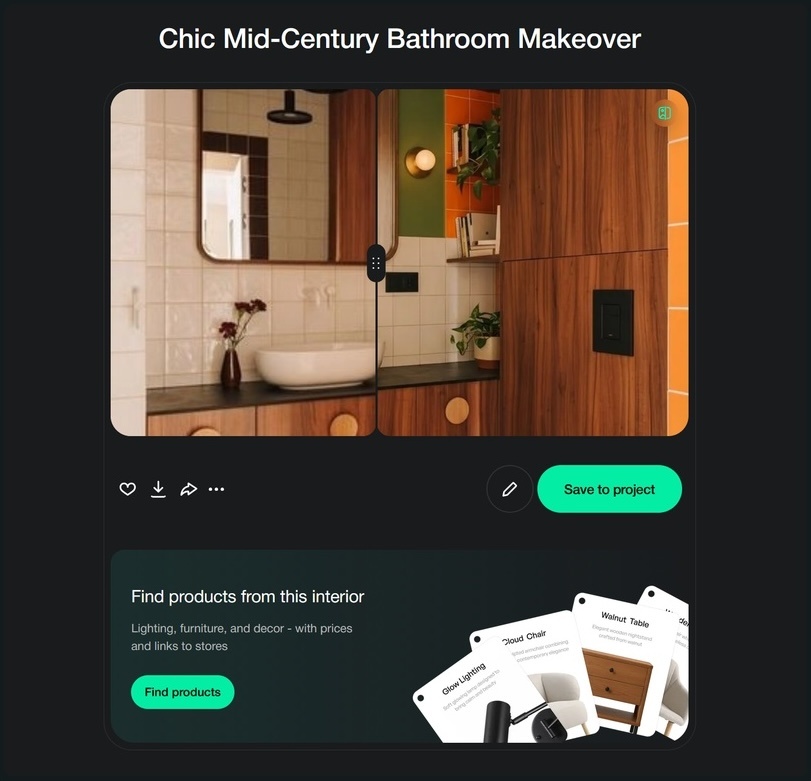
Then assess the reference cues. Is the olive color confined to the intended area? Does the wood overpower the existing floor? Is the orange accent still small? A useful correction names the problem: “Keep the retained floor visible and reduce the orange area.” “Make it better” leaves the important decision unspecified.
If you need the broader photo-to-concept workflow, our guide to designing a room from your own photo covers how to set constraints and review the resulting concepts. Here, the Pinterest board supplies the visual direction rather than replacing those checks.
Keep the selected references, your room photo, the written brief, and the preferred concept together. Add a short decision note: “Olive-led direction selected; retain the floor; no new niche; mirror size still to confirm.” This is more useful to a designer or installer than a folder of beautiful images with no explanation.
For a client project, ask which parts of the concept the client approves and which remain unresolved. A visual preference is not approval of a product price, structural change, or technical specification. Keep those decisions explicit rather than assuming agreement with the whole image.
Paintit.ai’s visual concept workflow for interior designers is relevant when the board is a starting point for client discussions. The designer still needs to reconcile preferences with measurements, sourcing, and the practical scope of the project.
Name the individual qualities you like, such as a wood tone or a curved furniture shape, and apply them to your own project. Use images you are entitled to use, retain source information, and do not present someone else’s photograph or design as your own work.
No. An AI mood board generator generally aims to assemble or create a visual board. This workflow starts with selected inspiration and uses it to guide a room concept. Choose a collage or board-making tool if your immediate need is arranging images on a presentation sheet.
Connecting Pinterest gives you access to selected visual inputs; it does not replace choosing the relevant Pins or explaining their roles. Start with a focused selection and a brief rather than assuming the system knows why you saved every image.
Yes, for an independent concept. Use an inspiration image as the starting point and describe the direction you want to explore. Do not treat that concept as a visualization of your actual room until you work from its photograph and check it against the space.
Not reliably from appearance alone. Keep the original product links, verify specifications with the supplier, and check physical samples. A close-looking generated surface is not confirmation of a particular paint, tile, fabric, or furniture model.